Skip to content

Your boutique hotel's whole day, on one screen.

Reservations, check-in, housekeeping, payments and reports. The same app on your phone and on your desk, and every team member sees only their own work.

  • Turkish interface
  • Phone and desktop
  • Role-based access

The phone below is live: tap and try. It runs on sample data; no sign-up or installation needed.

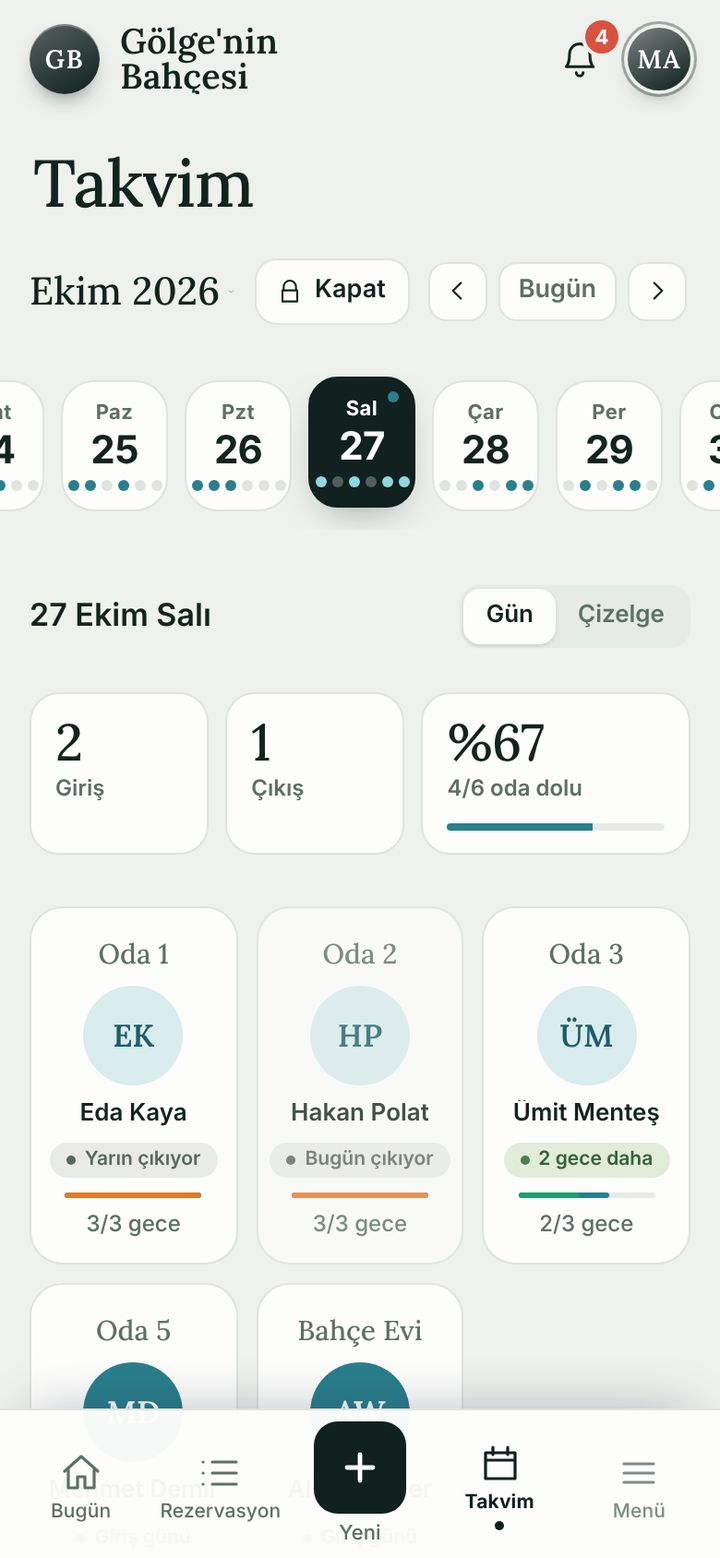
Calendar screen
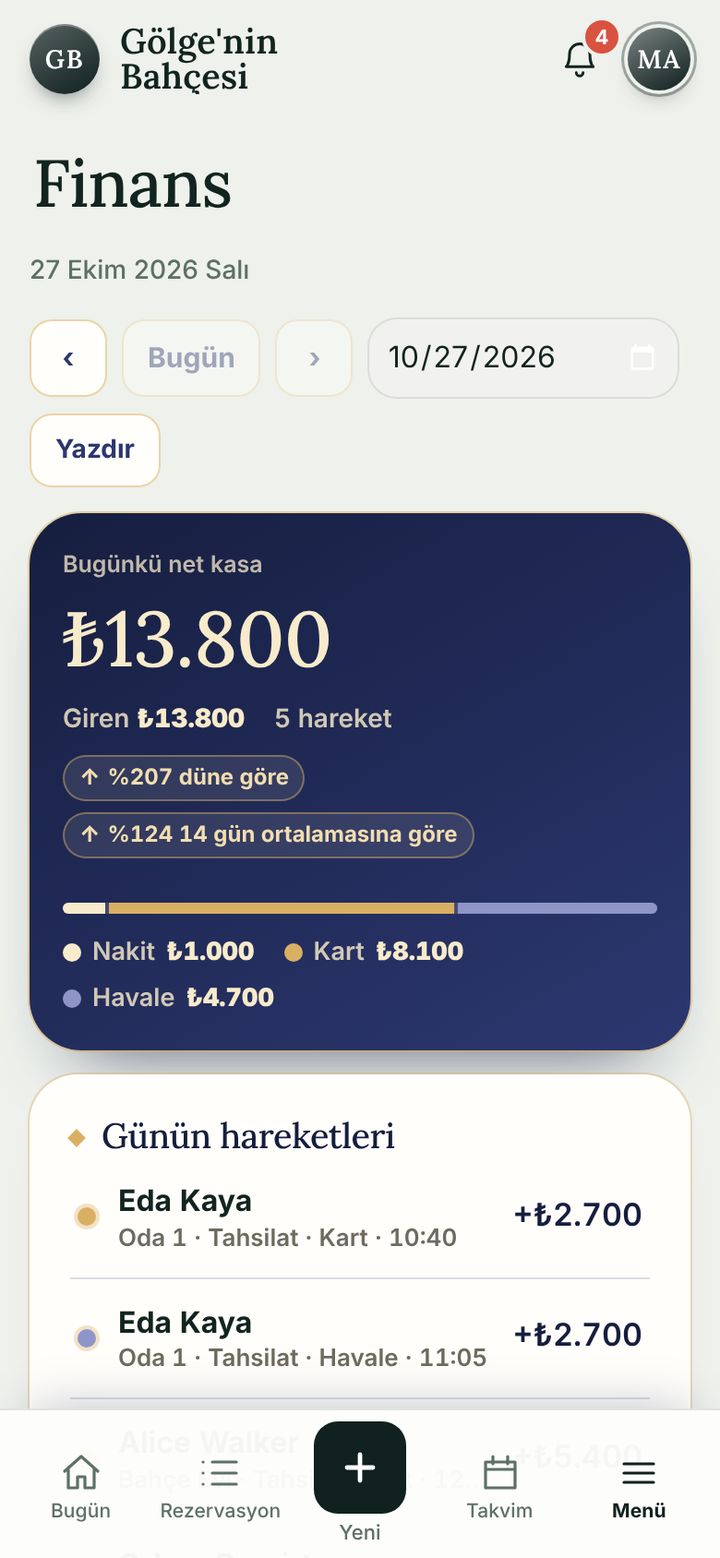
Finance screen

Follow one day from start to finish.

Every screen below is the real app. This is how an ordinary day runs in a small hotel.

08:00

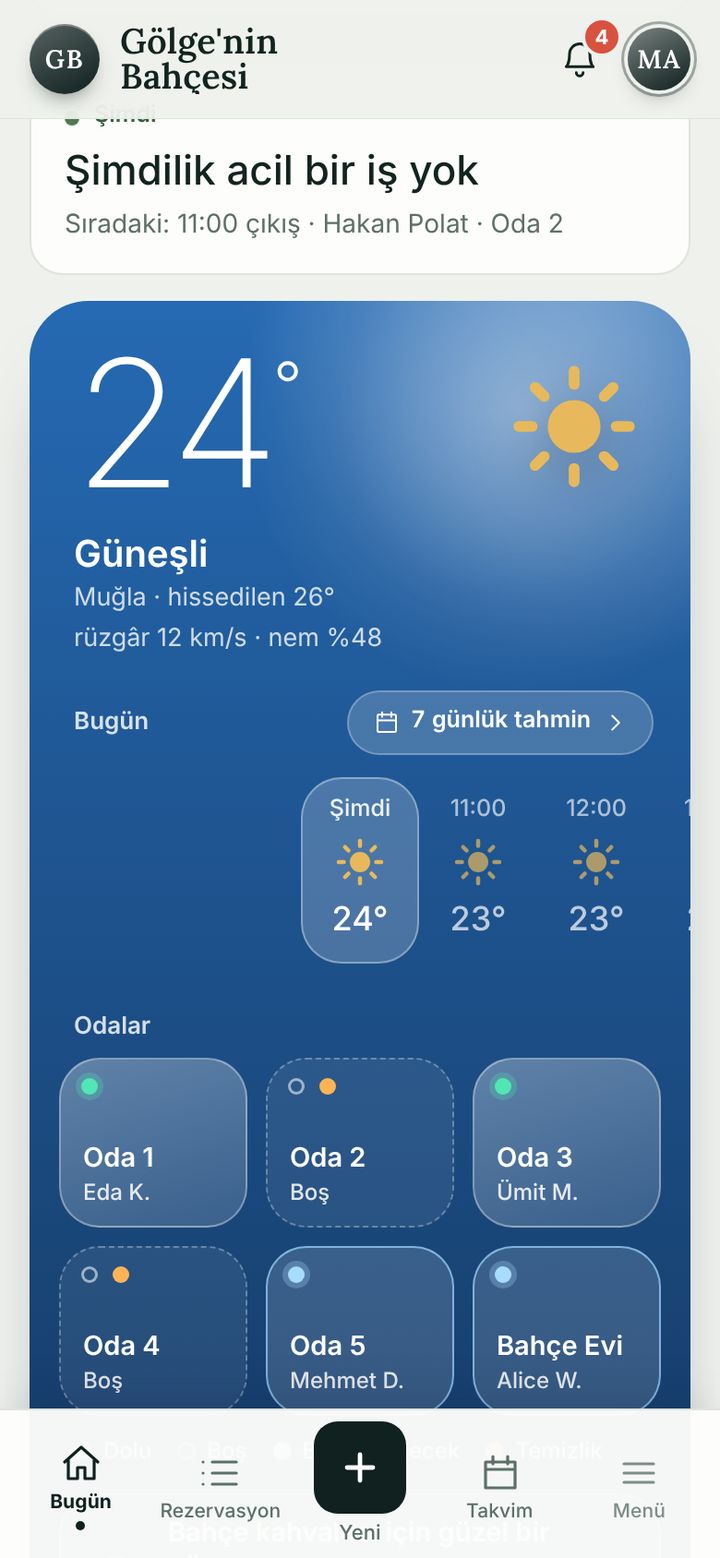
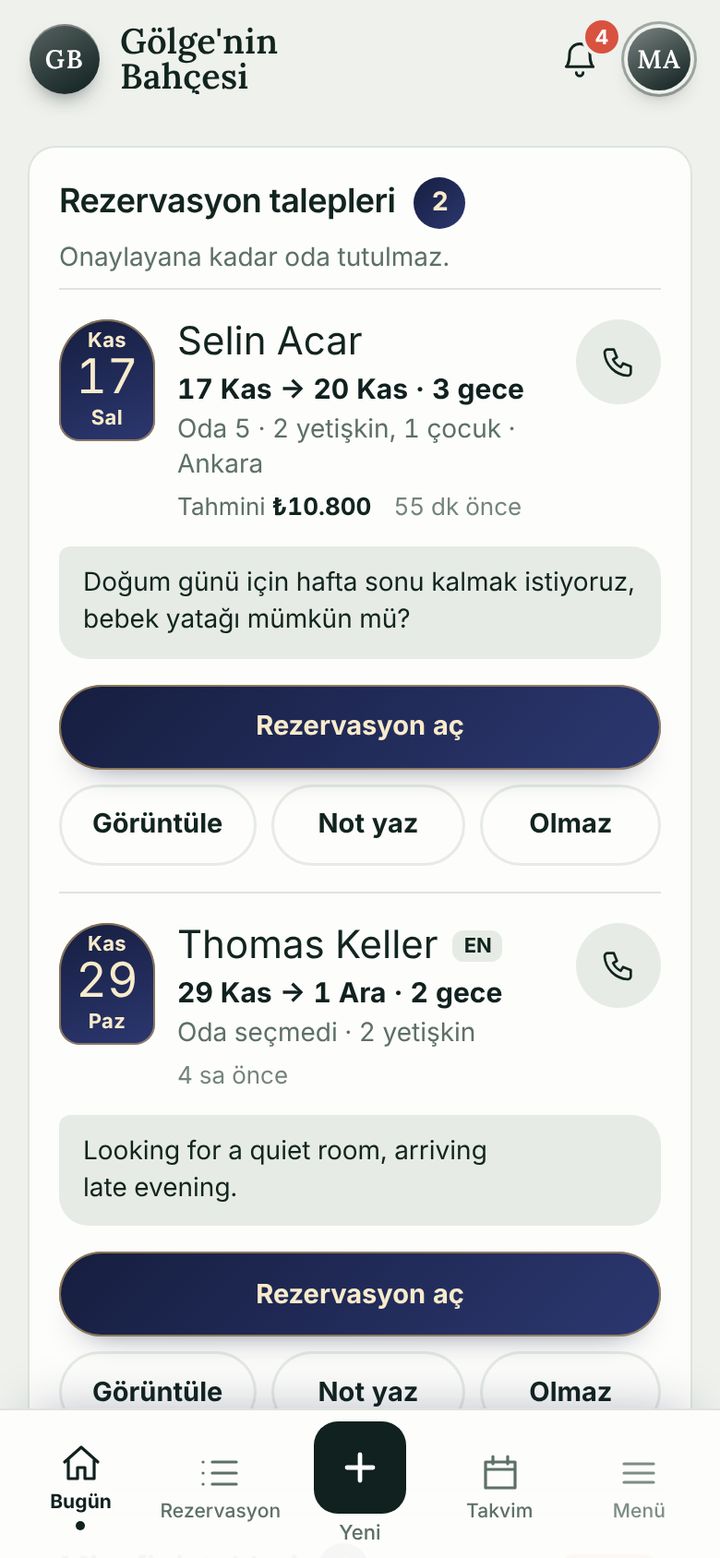
Start the day from one screen

Incoming booking requests, guest requests, the weather and room status all gather on the Today screen.

  • Answer a request with “Open reservation”, “Add note” or “Decline”.
  • Occupied, empty and arriving rooms are visible at a glance.
Reservation requests card
11:45

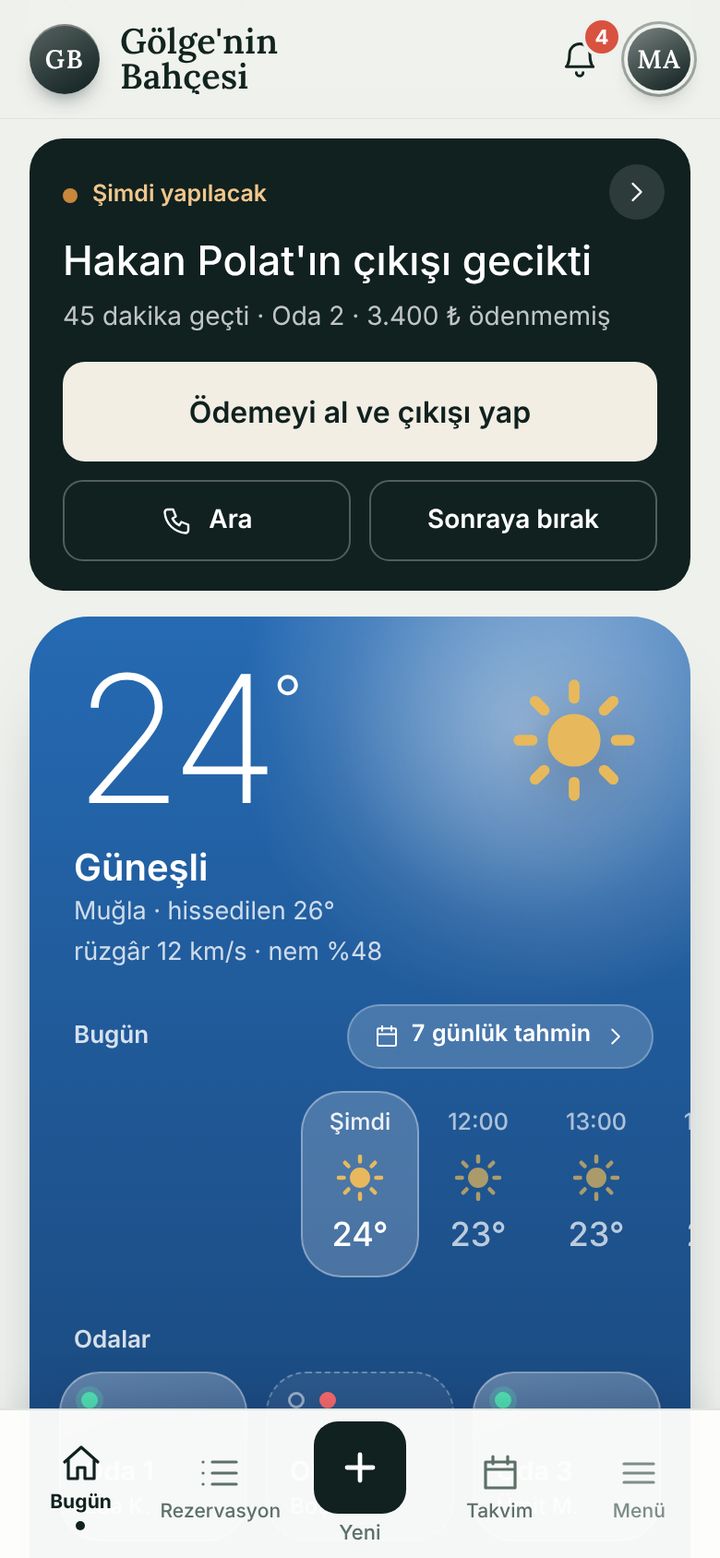
A late check-out, on one card

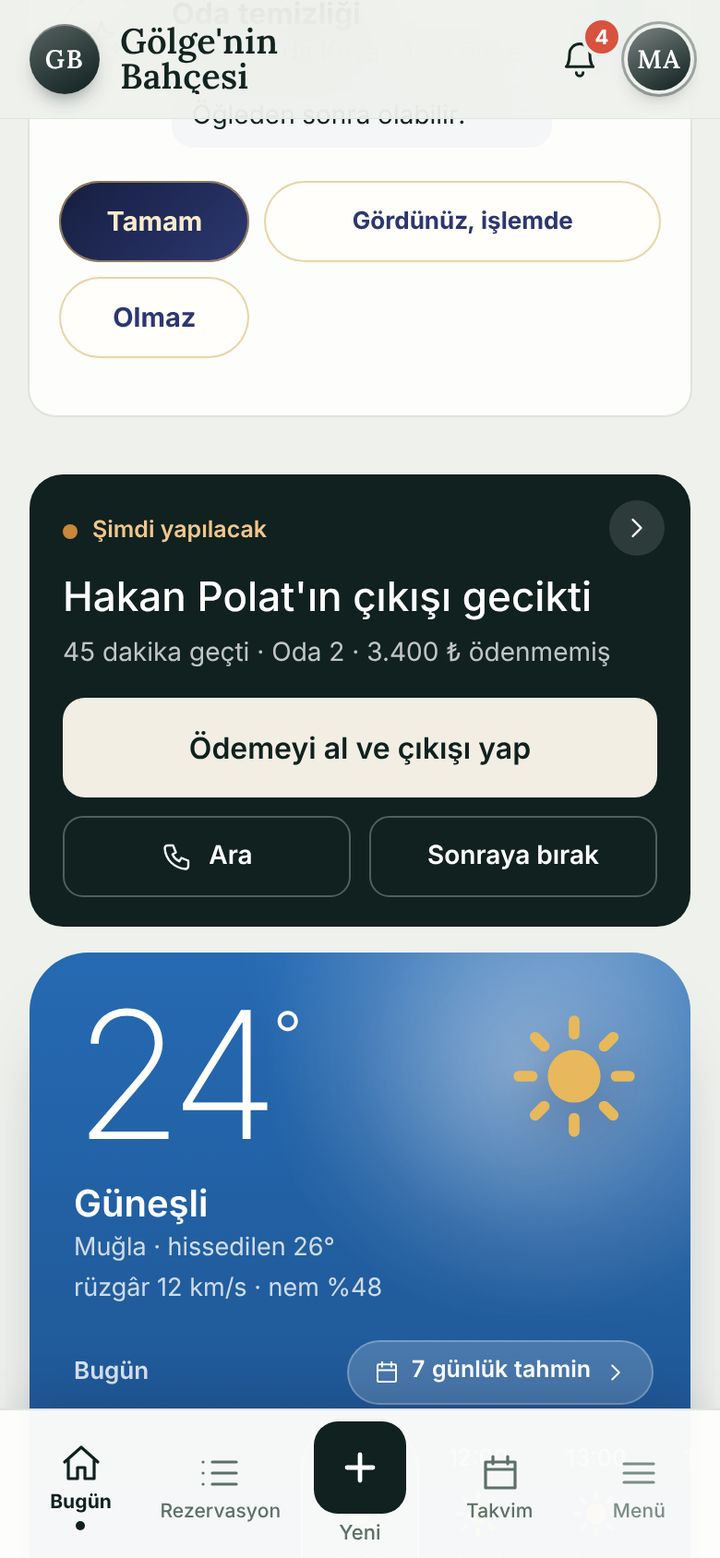
When a task is due, a “Do now” card appears at the top. Call the guest, snooze it, or start the action right away.

  • The late guest's unpaid balance is shown on the card.
  • Take payment and check out: one flow.
The “Do now” card
14:00

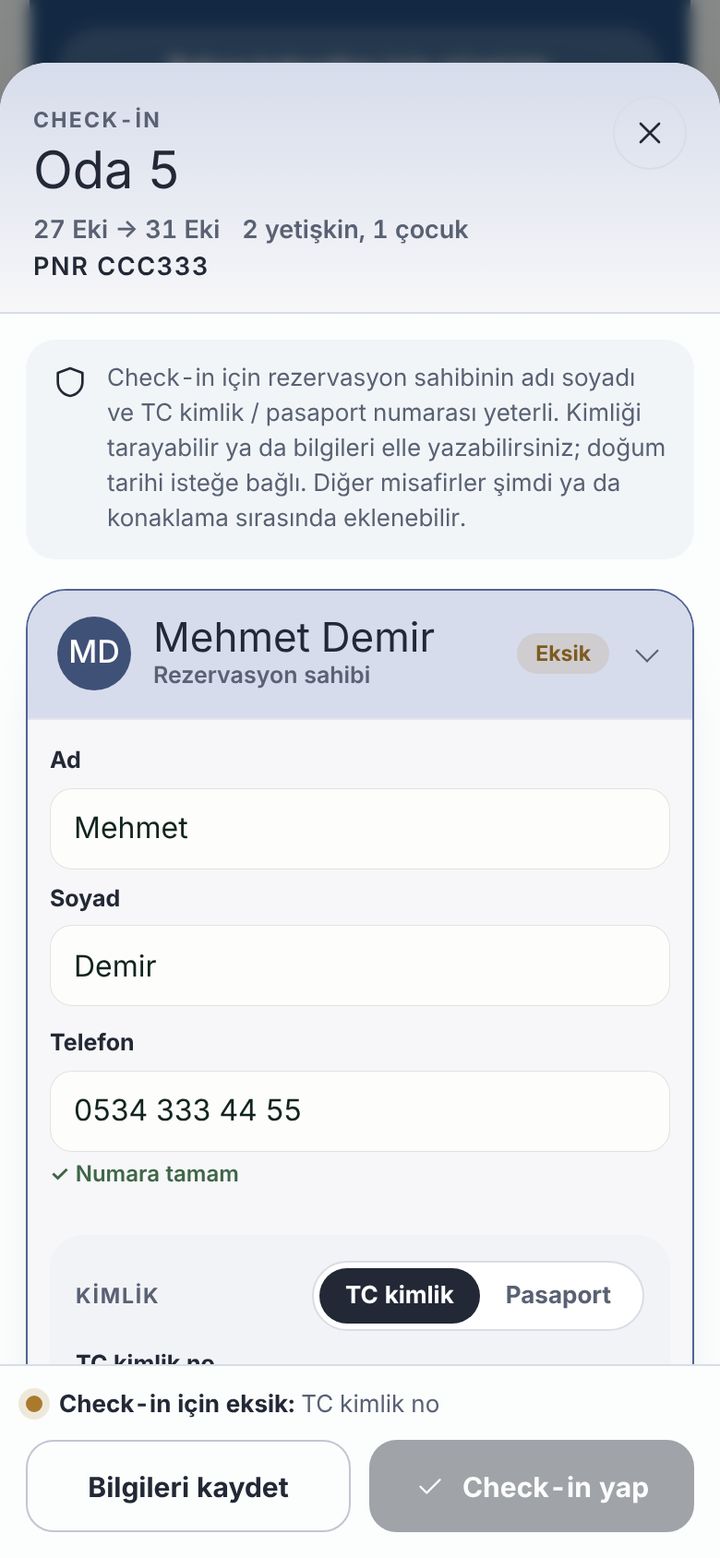
Check-in: scan or type the ID

The booking holder's name and ID or passport number are enough. The number is validated on the spot, and a wrong one says why.

  • ID scanning is optional; you can always type the details.
  • Guests with missing details are flagged in the list.
Check-in screen with the ID field
15:30

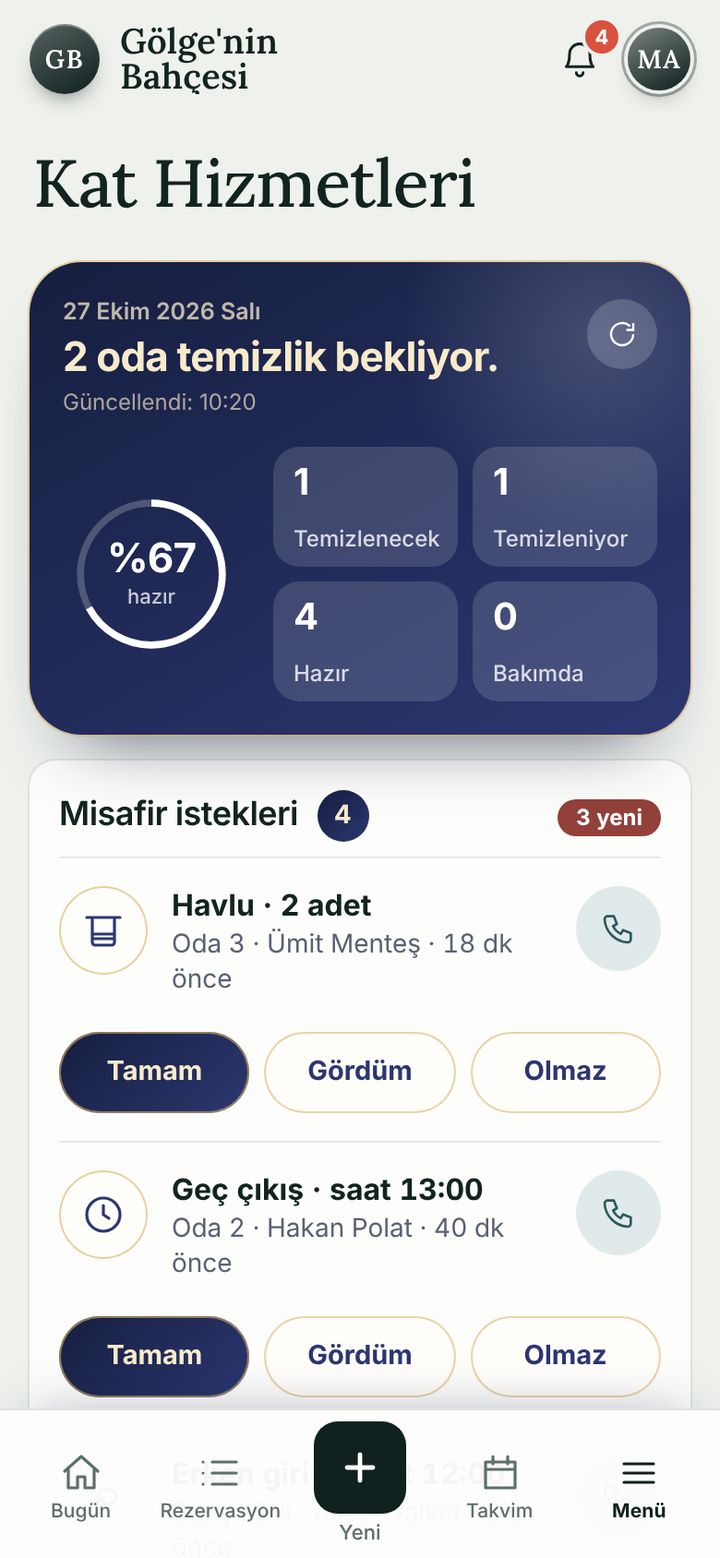
Is the room ready? Housekeeping knows

A checked-out room lands on the cleaning list by itself. A guest's request for towels or a late check-out gets answered with one tap.

  • To clean, Cleaning, Ready, Maintenance: the count in every state is visible.
  • Requests: Done, Seen or Can't do.
Housekeeping screen
18:30

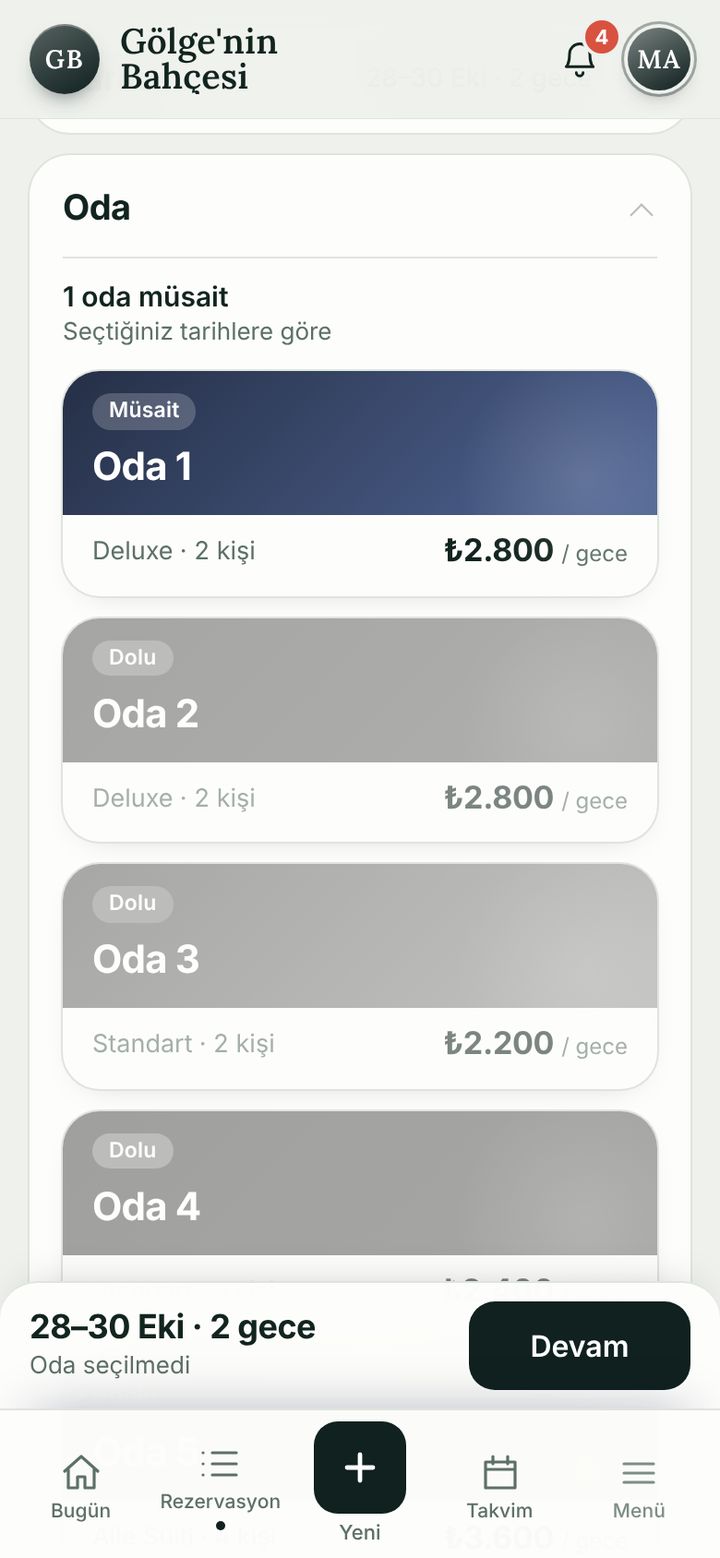
A new reservation in four steps

Dates, room, guest and details. Occupied rooms are marked; if something is missing, it tells you which field.

  • Pick the channel: phone, WhatsApp, walk-in, Booking.com, Airbnb.
  • The booking appears in the Reservations list immediately.
New reservation, choosing a room
23:30

Close the day: cash and handover note

The day's net cash, the cash / card / transfer split and every payment in one list. Leave a note for the next shift in the Handover log.

  • Only authorised roles can see Finance.
  • An important handover note is pushed to the team's phones.
Finance screen, the day's cash

Every module, one by one.

Every screen of the app is here. Pick a group, tap a module; the open ones can be tried in the demo right away.

Today

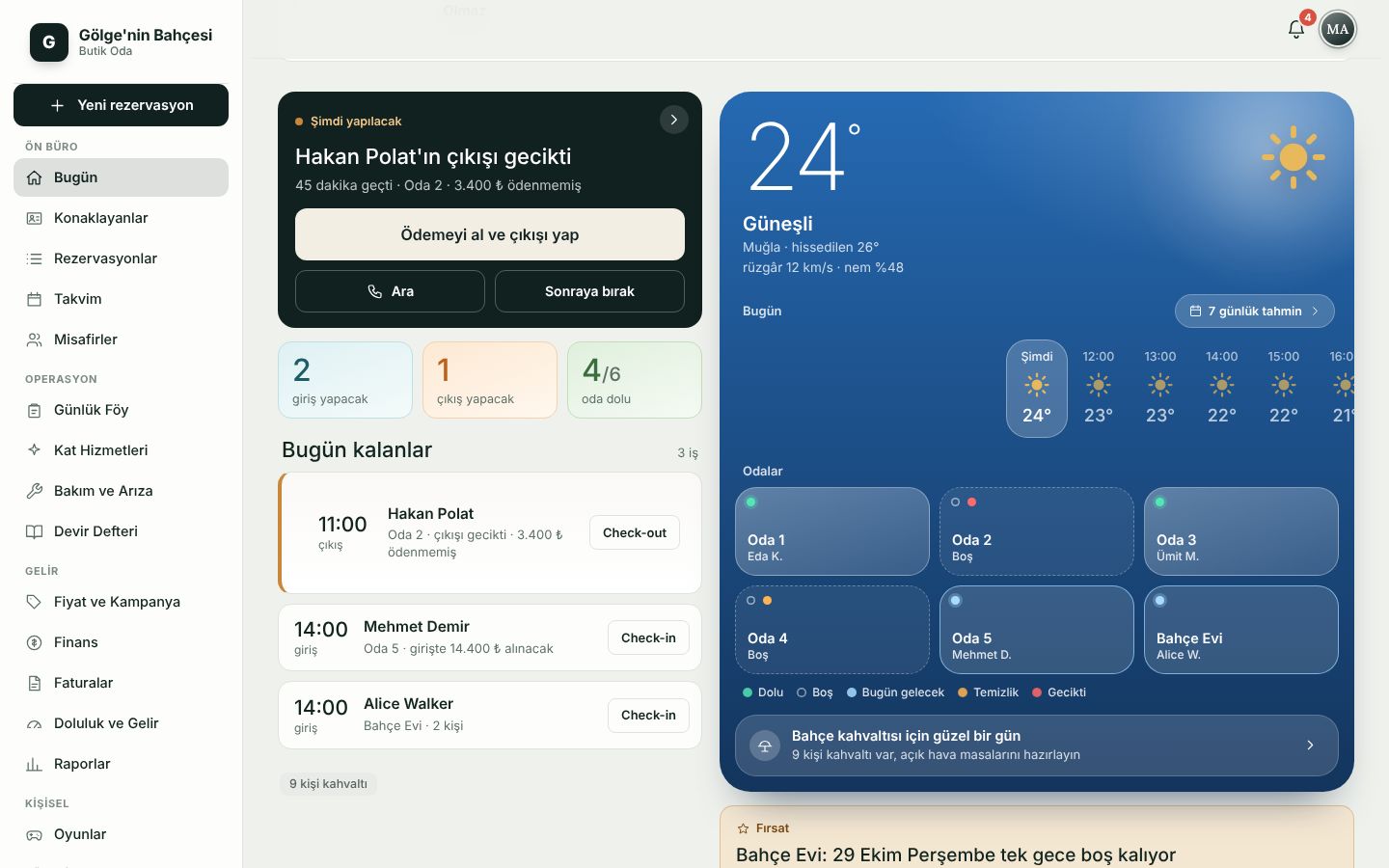
The first screen is a plan for the day, not a dashboard: pending requests, guest requests, rooms and the next task.

  • Reservation requests: turn a request from the online page into a booking with one tap, add a note, or decline.
  • Do now: when a task is due, one card on top. Call, snooze or start the action.
  • Remaining today: arrivals and departures in time order, with any unpaid amount next to the row.
  • Opportunity: spots a single night stuck between two bookings and suggests offering it as an extension.
  • This week: one row per room, stays on a day line, with the occupancy percentage.
Today screen
Today (desktop)

Weather

Weather is part of the work plan: breakfast in the garden, or set up the terrace?

  • The hourly strip scrolls with your finger; temperature and sky change with the hour.
  • A 7-day forecast opens full screen; tap a day for its details.
  • The sky moves calmly behind the card: sun, cloud, rain, snow, a starry night.
Weather screen

Reservations

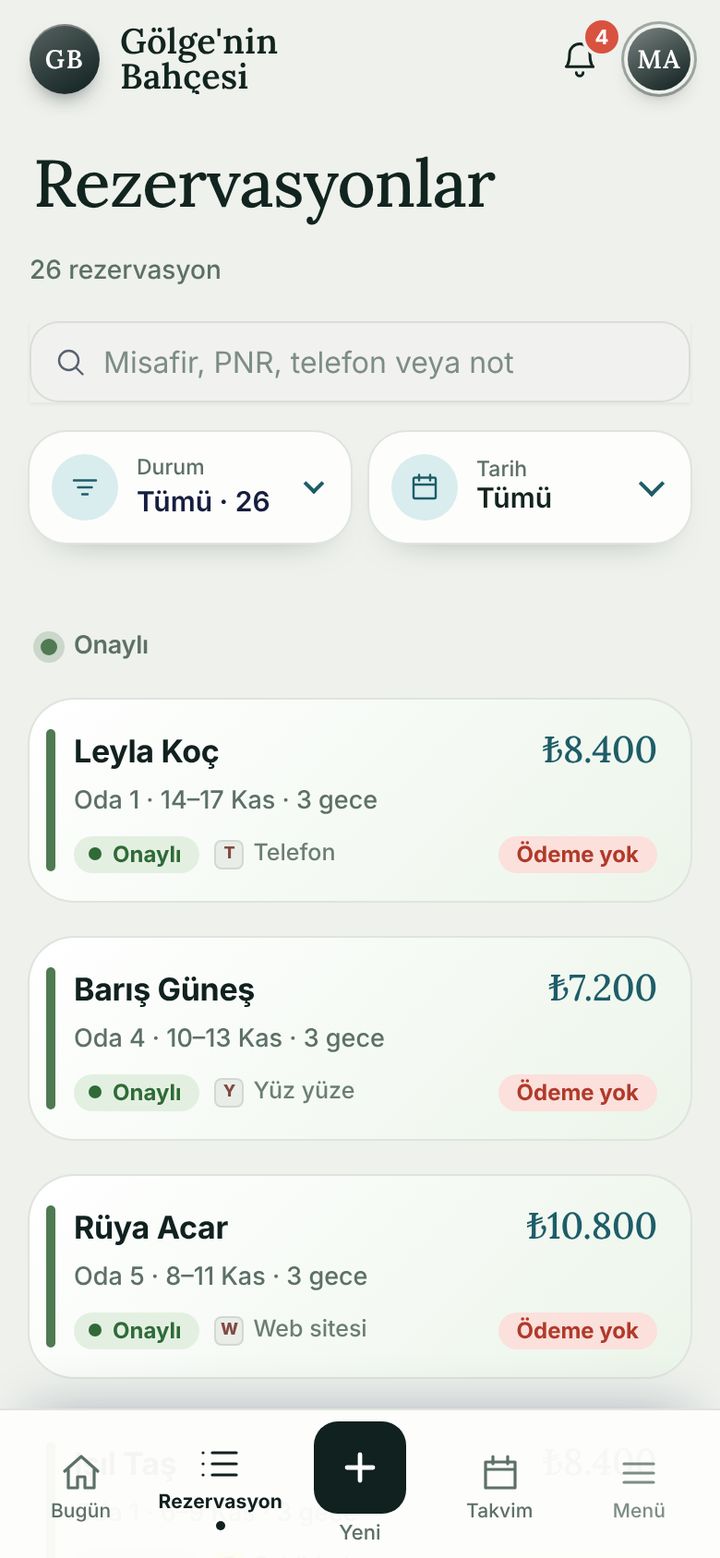
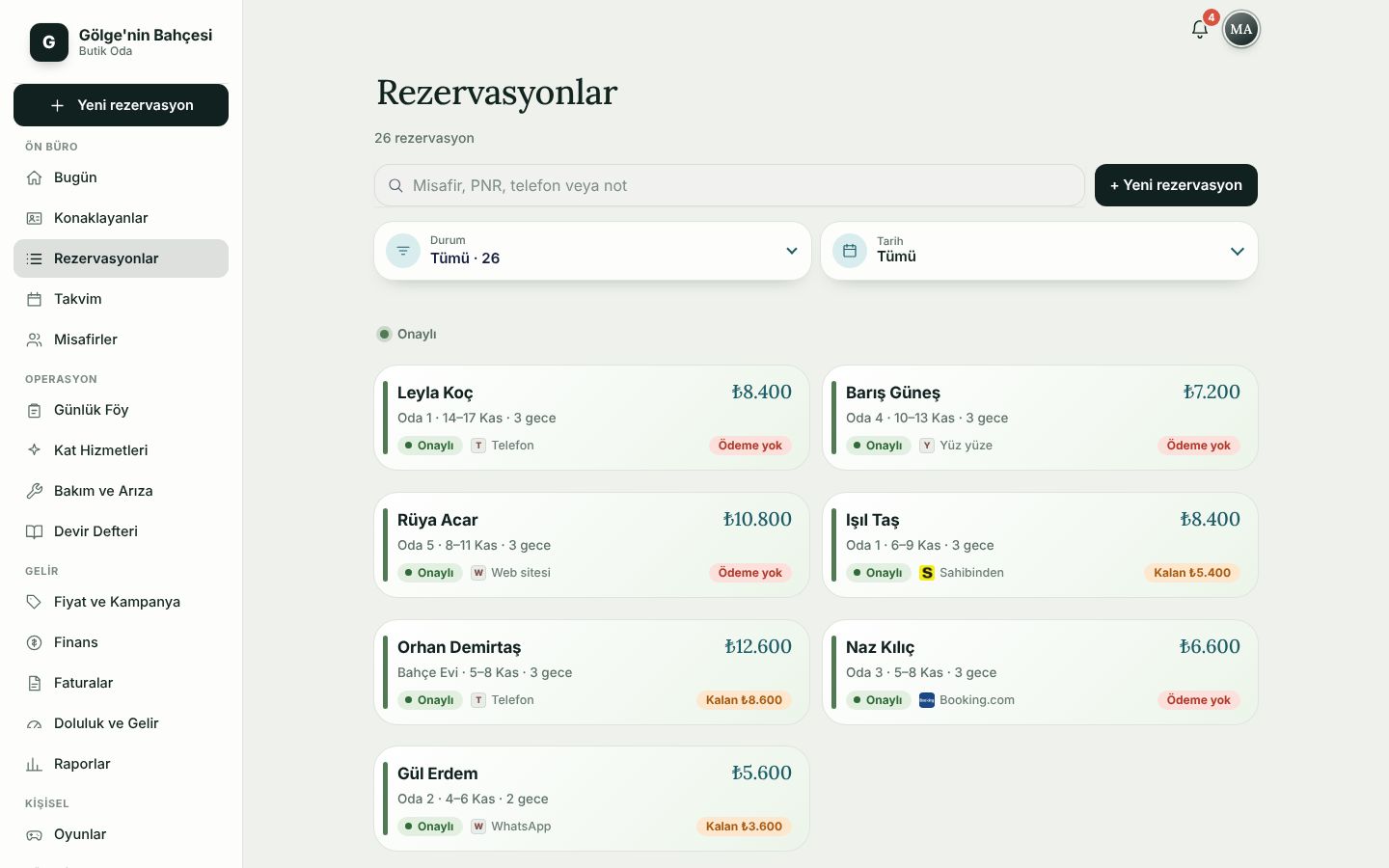
Every booking in one list; searching and filtering need no learning.

  • Search by name, PNR, phone or note; filter by status and date.
  • Each card shows the channel (Airbnb, phone, walk-in…), the amount and a “No payment” or “Balance” tag.
  • In the detail view: Call, WhatsApp, Confirmation, Invoice, Guest QR, Edit, Add payment and Cancel.
Reservations screen
Reservations (desktop)

New reservation

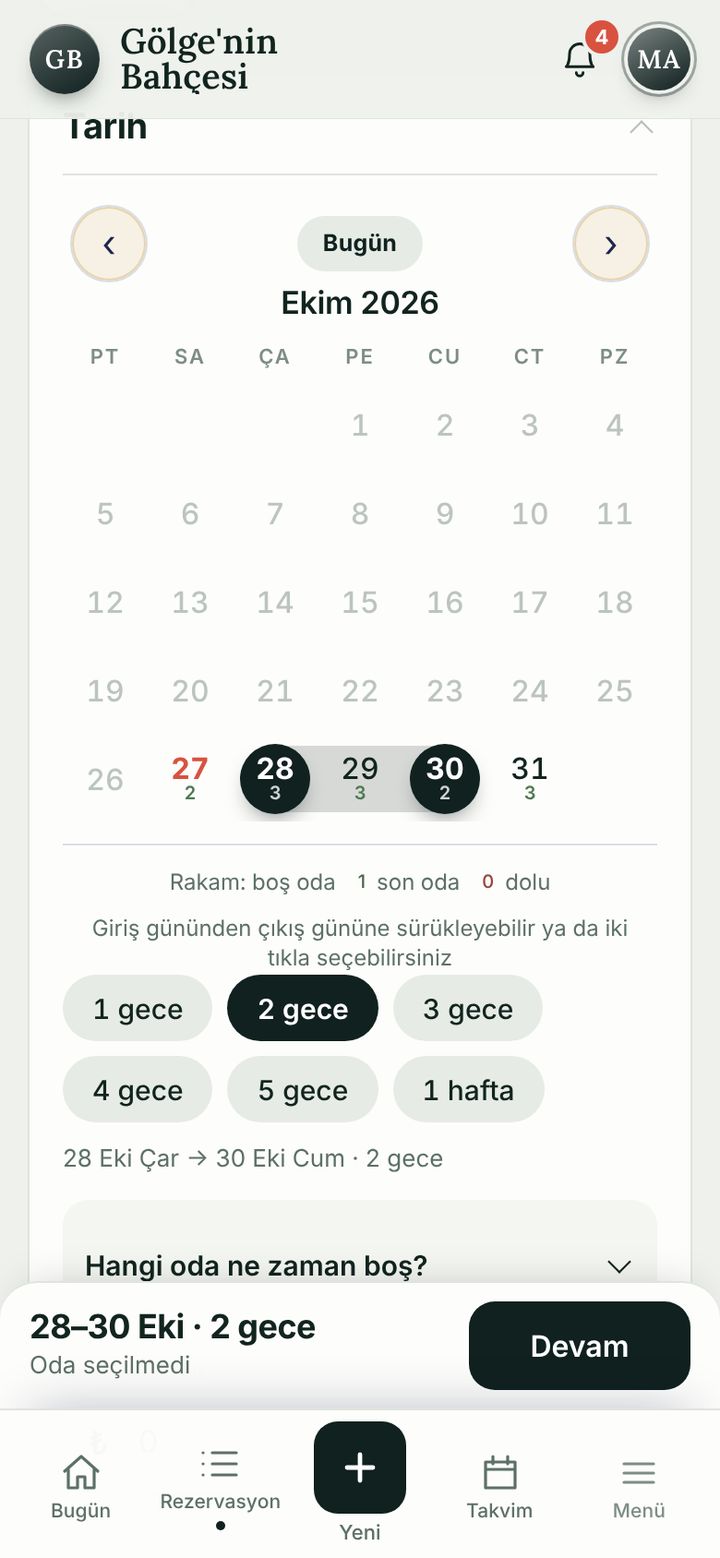
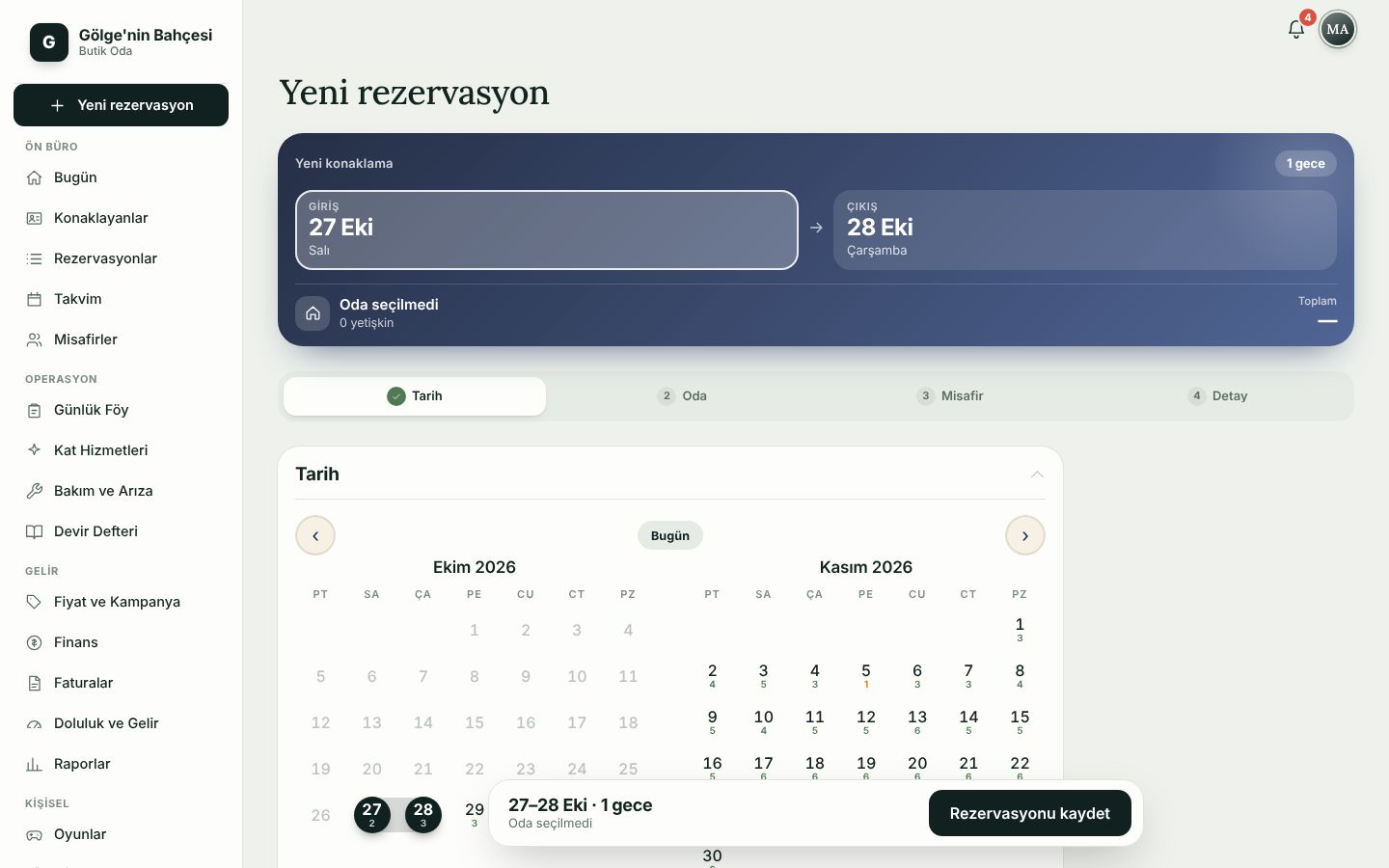
The round + button opens a four-step flow: dates, room, guest, details.

  • Occupied rooms are marked and cannot be picked; no double bookings.
  • If something is missing it names the field, row by row (“Enter a first name”, “Enter a phone number”).
  • Channel and deposit (cash, card, transfer, virtual POS) are entered; “Deposit pending” shows as a hatched bar on the calendar.
  • When saved a PNR is generated and the booking appears in the list straight away.
New reservation screen
New reservation (desktop)

Calendar and grid

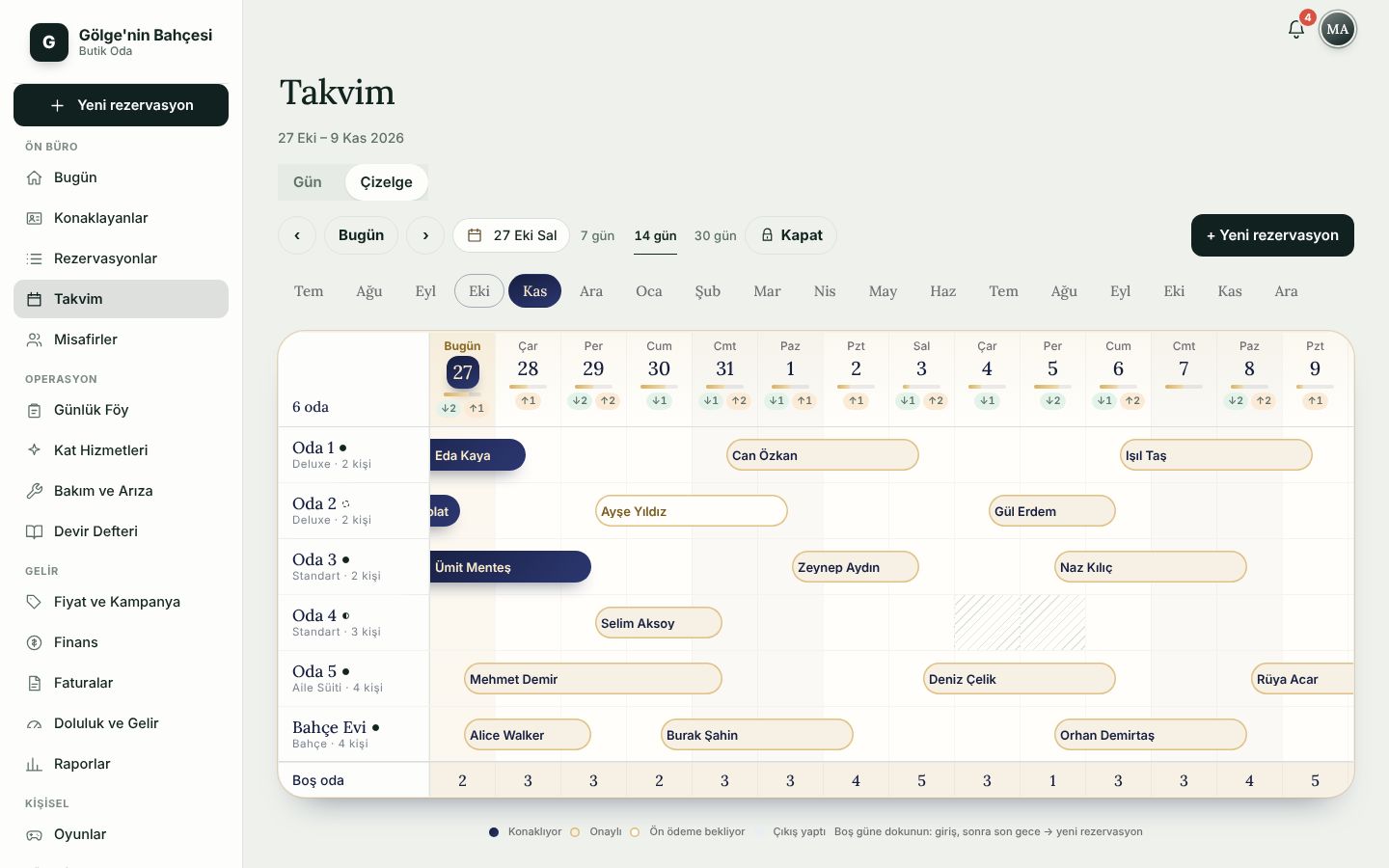
The day view shows the day’s rooms as cards; the grid shows every room with weekly bars.

  • Tap “+” on an empty card to book; on an occupied one see the guest and nights spent.
  • “Close”: a room or the whole house, a date range and a reason (Renovation, Personal use, Maintenance, Season closed).
  • Closed nights go to Airbnb as occupied; no guest is notified.
Calendar and grid screen
Calendar and grid (desktop)

Check-in and ID

The booking holder’s name and ID or passport number are all it takes.

  • The number is validated as you type: “ID number invalid” or “Number OK”.
  • ID scanning is optional; you can always type the details. Always check what was read.
  • Other guests can be added now or during the stay.
ID scanning runs with your own Google Cloud Vision key; without one, details are typed in within seconds.
Check-in and ID screen

Check-out and payment

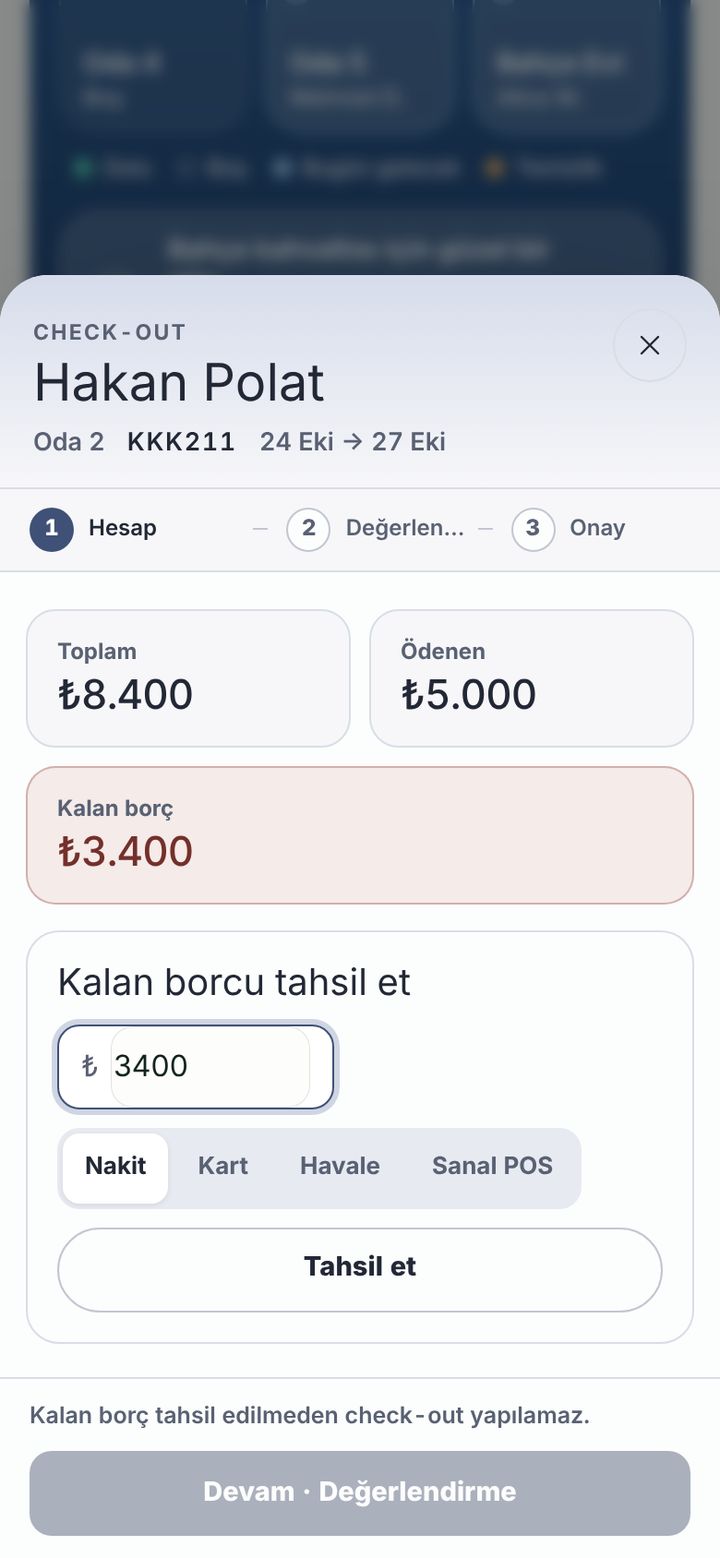
Three steps: Bill, Rating, Confirm. A guest cannot check out before paying.

  • Total, paid and balance at a glance; “Collect balance” by cash, card, transfer or virtual POS.
  • With a balance the check-out is locked: “Check-out is not possible before the balance is collected.”
  • The guest rating is internal; the guest never sees it. The vacated room lands on the cleaning list.
Check-out and payment screen

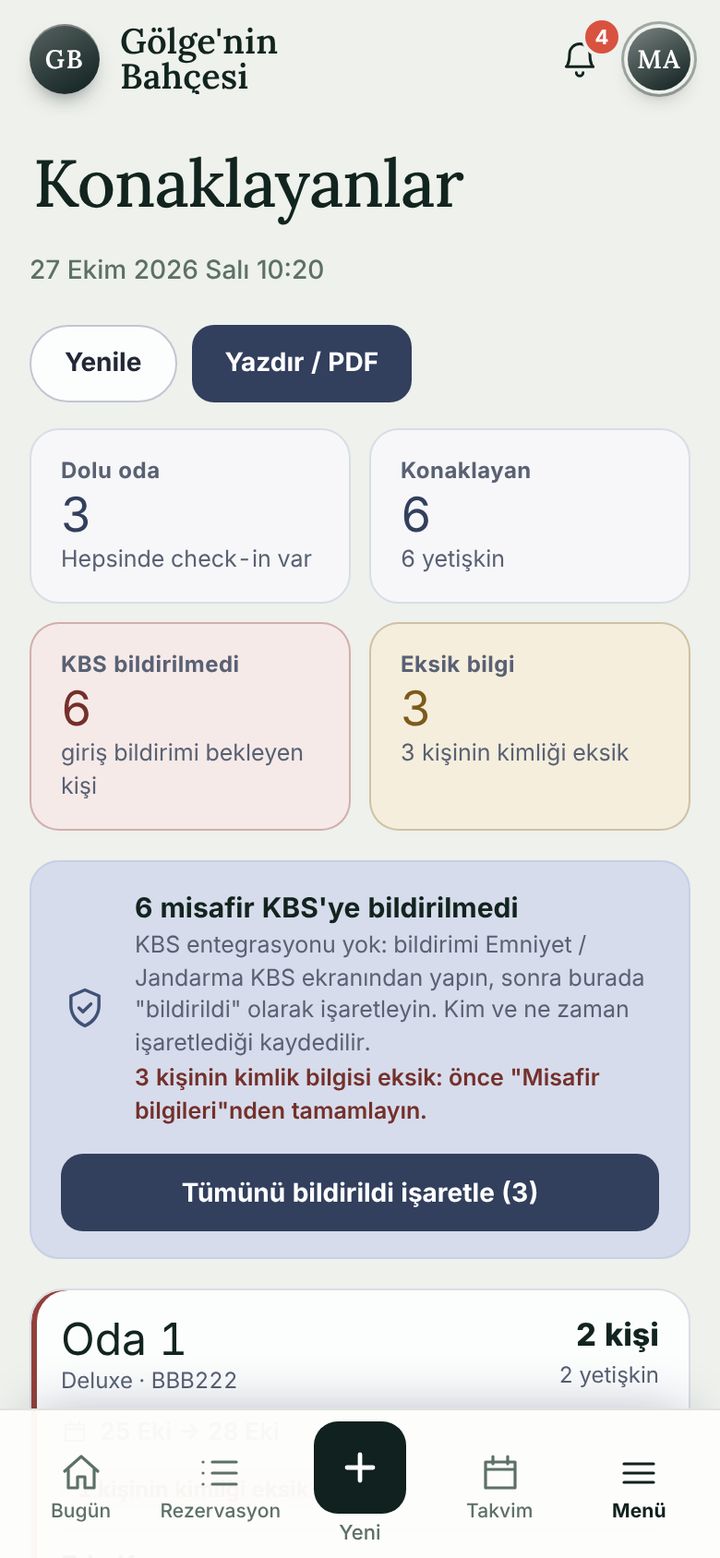
In-house guests and KBS tracking

Who is in the house, whose ID details are missing, and who has not been reported?

  • Occupied rooms, guest count, “Not reported to KBS” and “Missing details” counters.
  • After reporting on the police / gendarmerie KBS screen you mark it “reported” here; who and when is recorded.
  • Print / PDF gives you the list on paper.
Details are kept ready for KBS and the report status is tracked on one screen.
In-house guests and KBS tracking screen

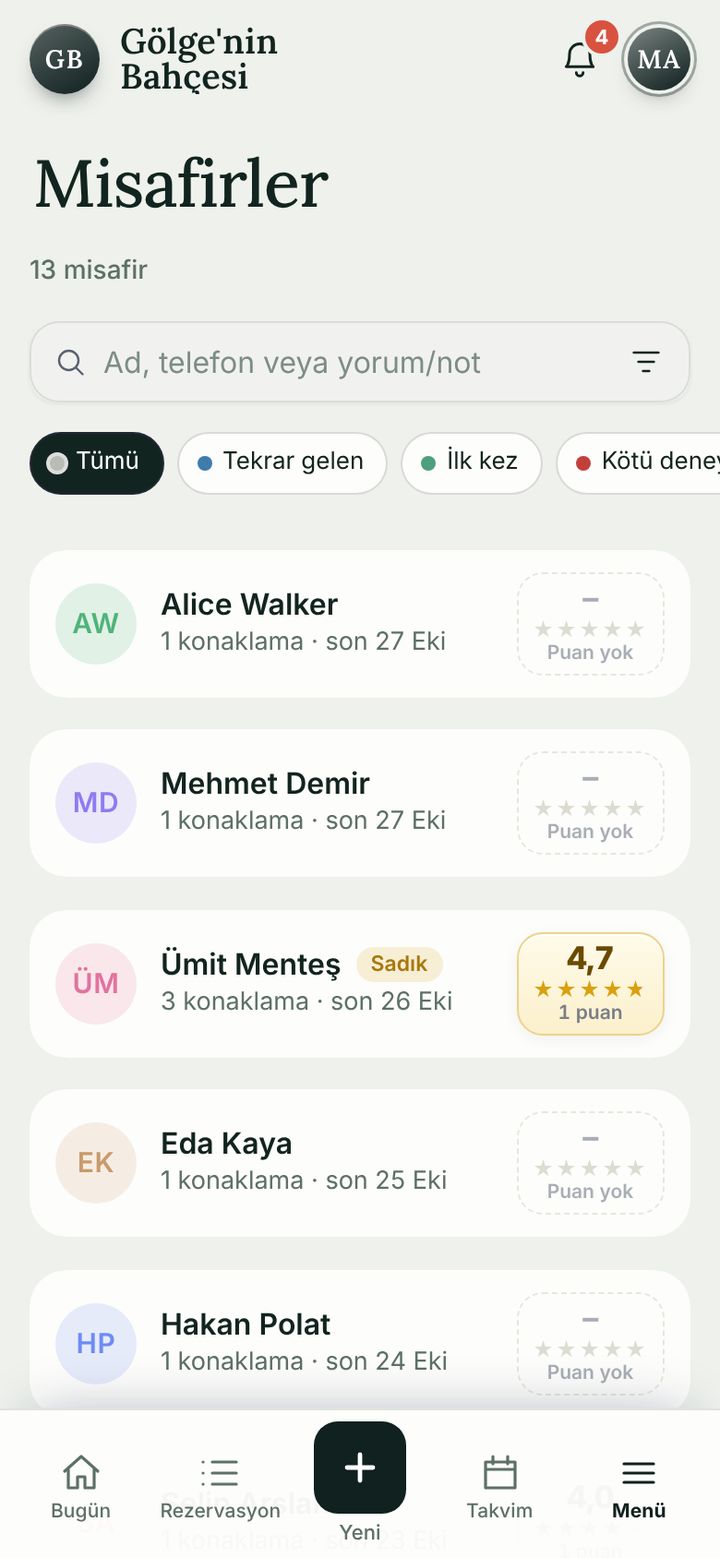
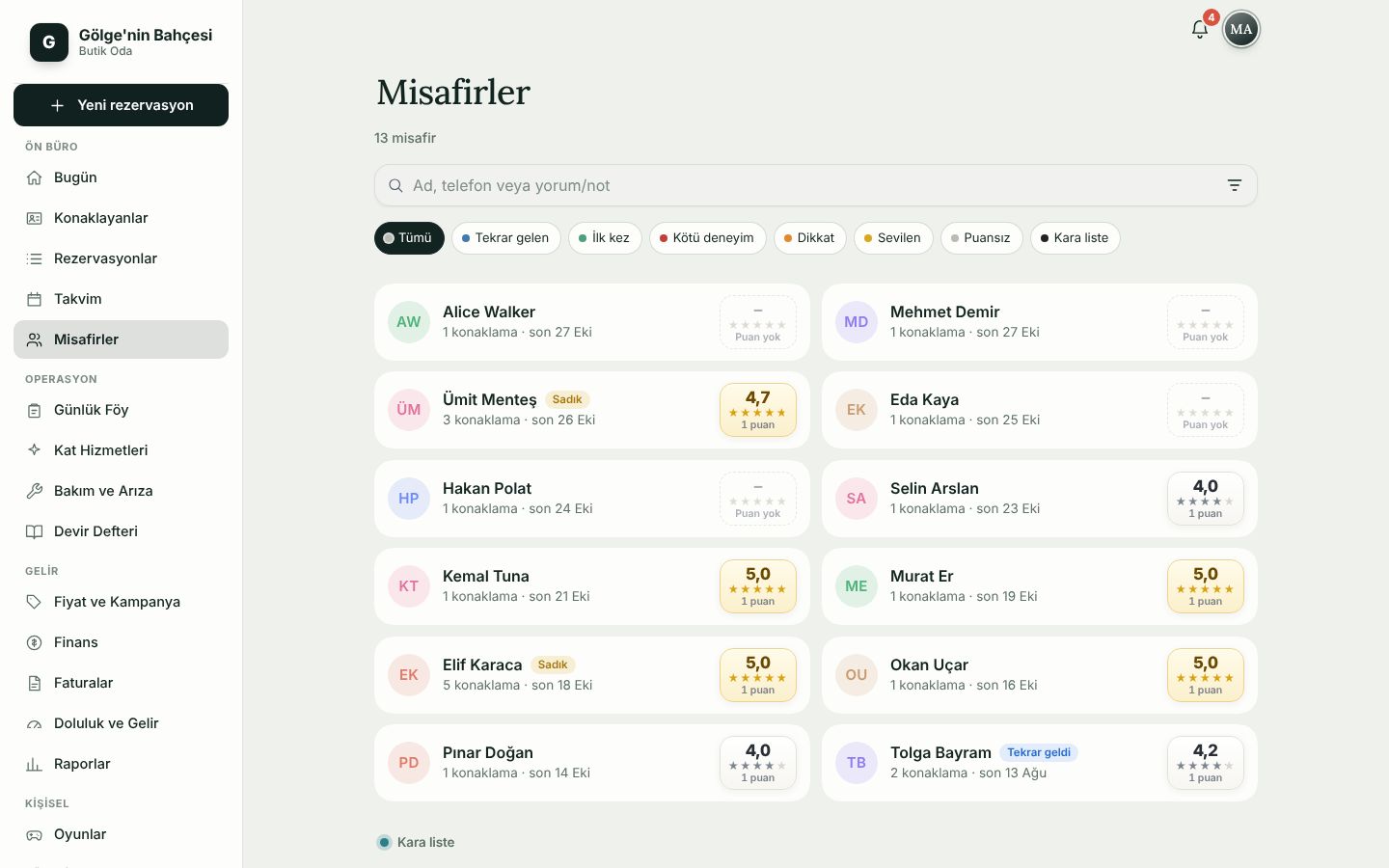
Guests

Know your returning guests: past stays, ratings and notes at hand.

  • Search by name, phone or note; “Returning”, “First time” and “Bad experience” filters.
  • For each guest: number of stays, last stay and a ★ rating.
  • Blacklist: authorised roles add and remove entries.
Guests screen
Guests (desktop)

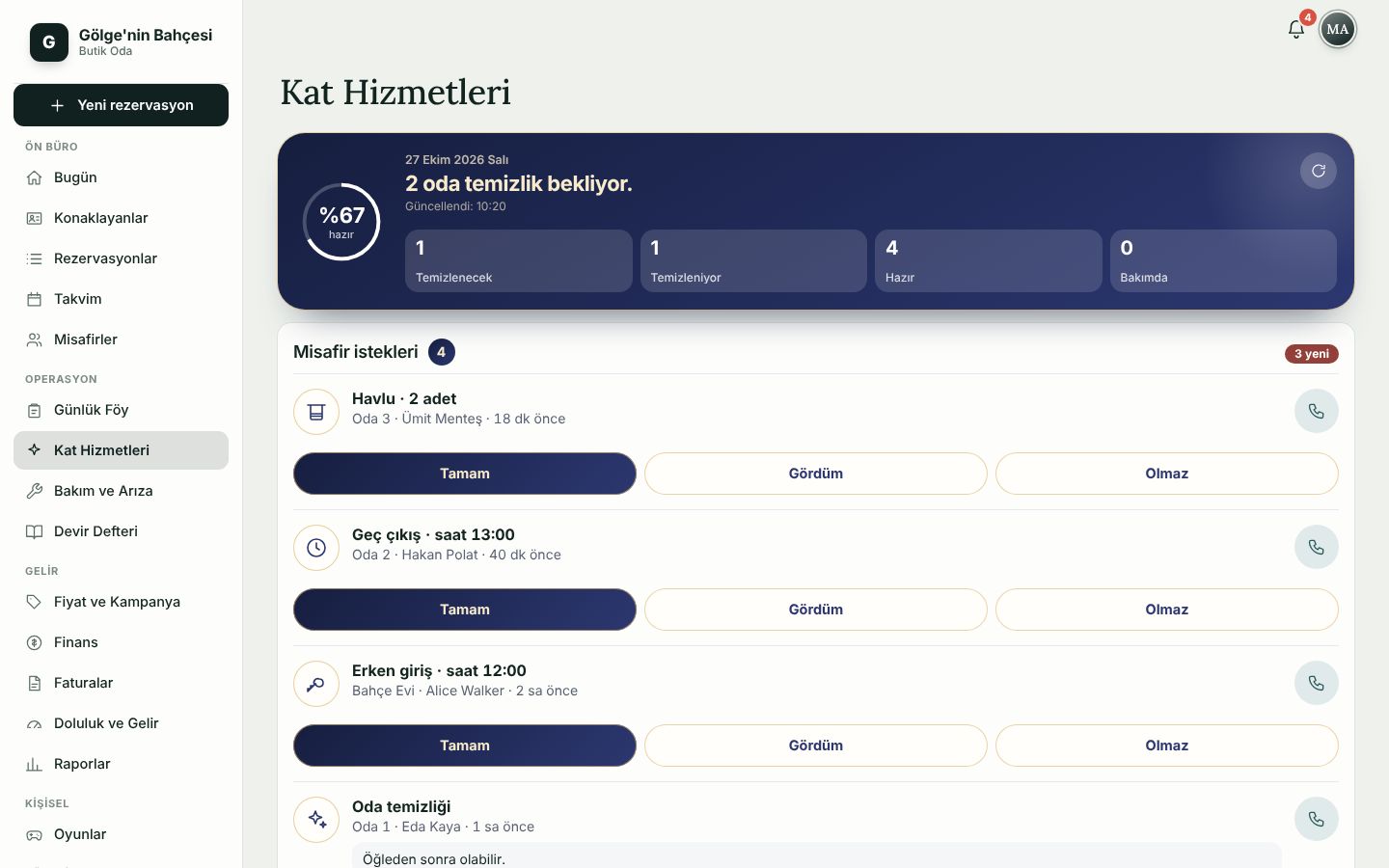
Housekeeping

A vacated room lands on the cleaning list by itself; “is the room ready?” is answered.

  • To clean, Cleaning, Ready, Maintenance: the room count in each state and the percent ready.
  • “Start cleaning” moves a room to Cleaning; rooms with an arrival or departure today come first.
  • Guest requests (towels, late check-out, early check-in): Done, Seen or Can’t do.
Housekeeping screen
Housekeeping (desktop)

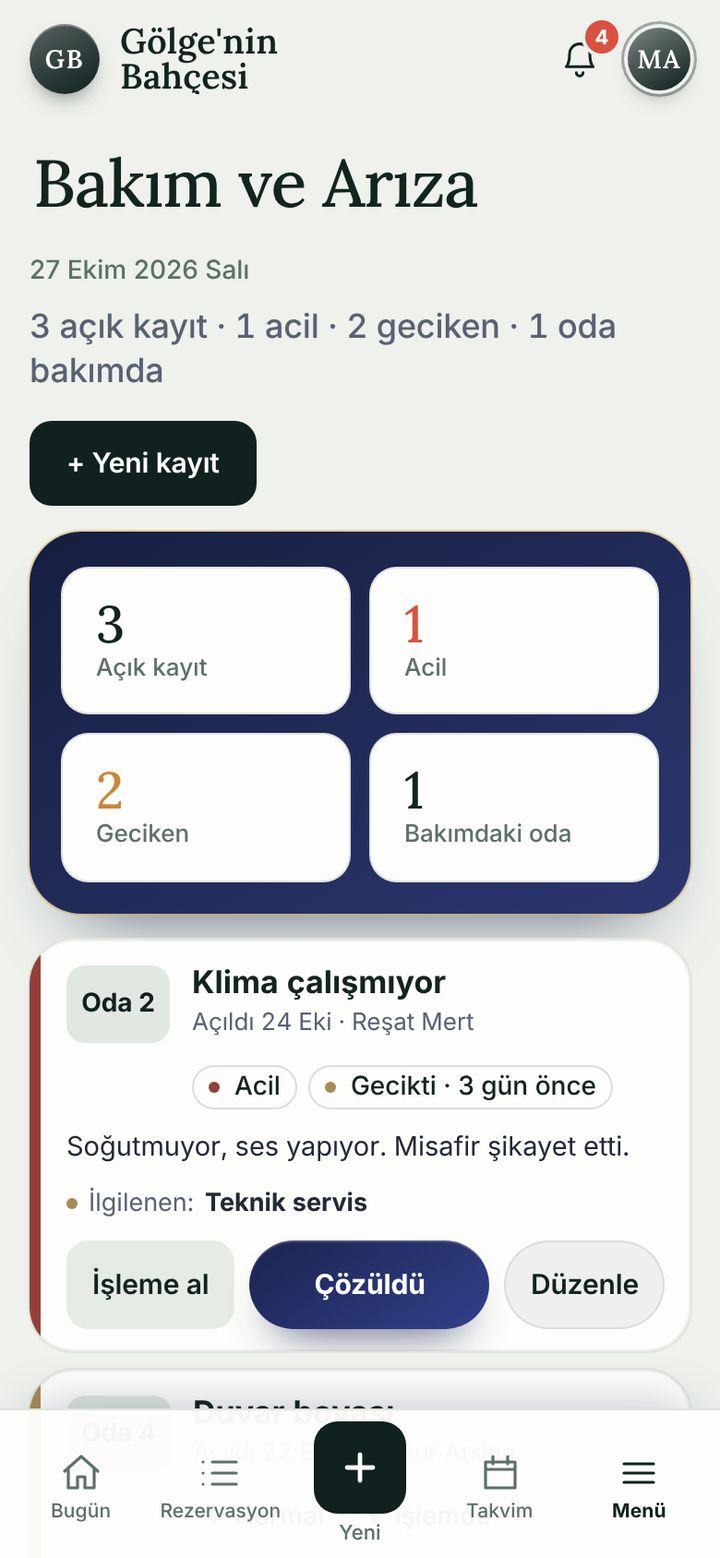
Maintenance and faults

Log a fault; urgent and overdue ones stand out, and who is on it is recorded.

  • Priority: Low, Normal, Urgent. Room, problem, details and who handles it.
  • “Take on”, “Solved” and “Edit” buttons; counters for open, urgent and overdue.
  • “Close the room for sale”: the room goes under maintenance and returns to cleaning once solved.
Maintenance and faults screen

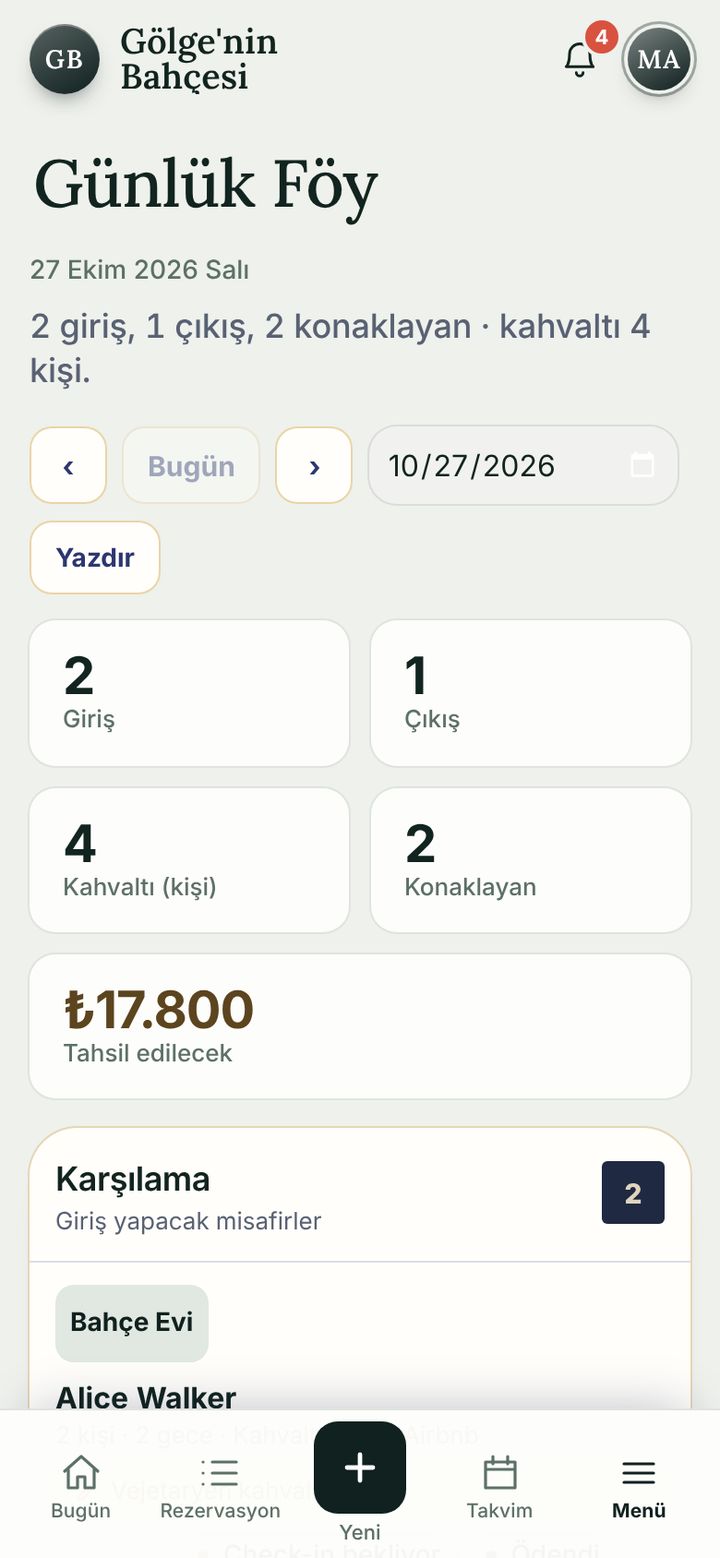
Daily sheet

The day’s summary, ready to print: arrivals, departures, in-house guests and breakfast covers.

  • Arrivals, departures, breakfast (people), in-house guests and amount to collect.
  • The welcome list also shows the guest’s note (“Baby cot ready, please”).
  • Pick a date and print it.
Daily sheet screen

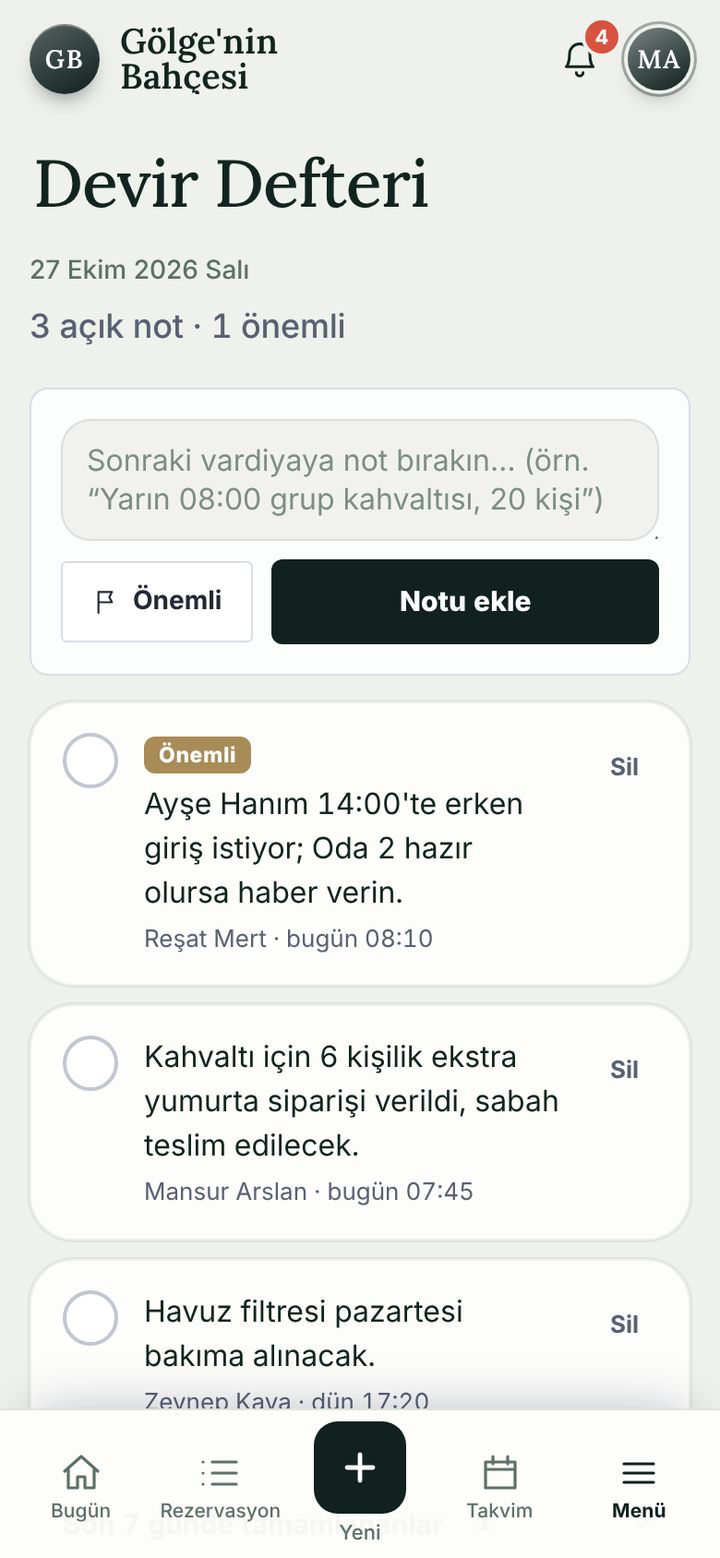
Handover log

Leave a note for the next shift and mark what matters.

  • Who wrote a note and when is visible; finished notes are ticked off.
  • A note marked “Important” is pushed to the team’s phones.
  • The counter shows open and important notes.
Handover log screen

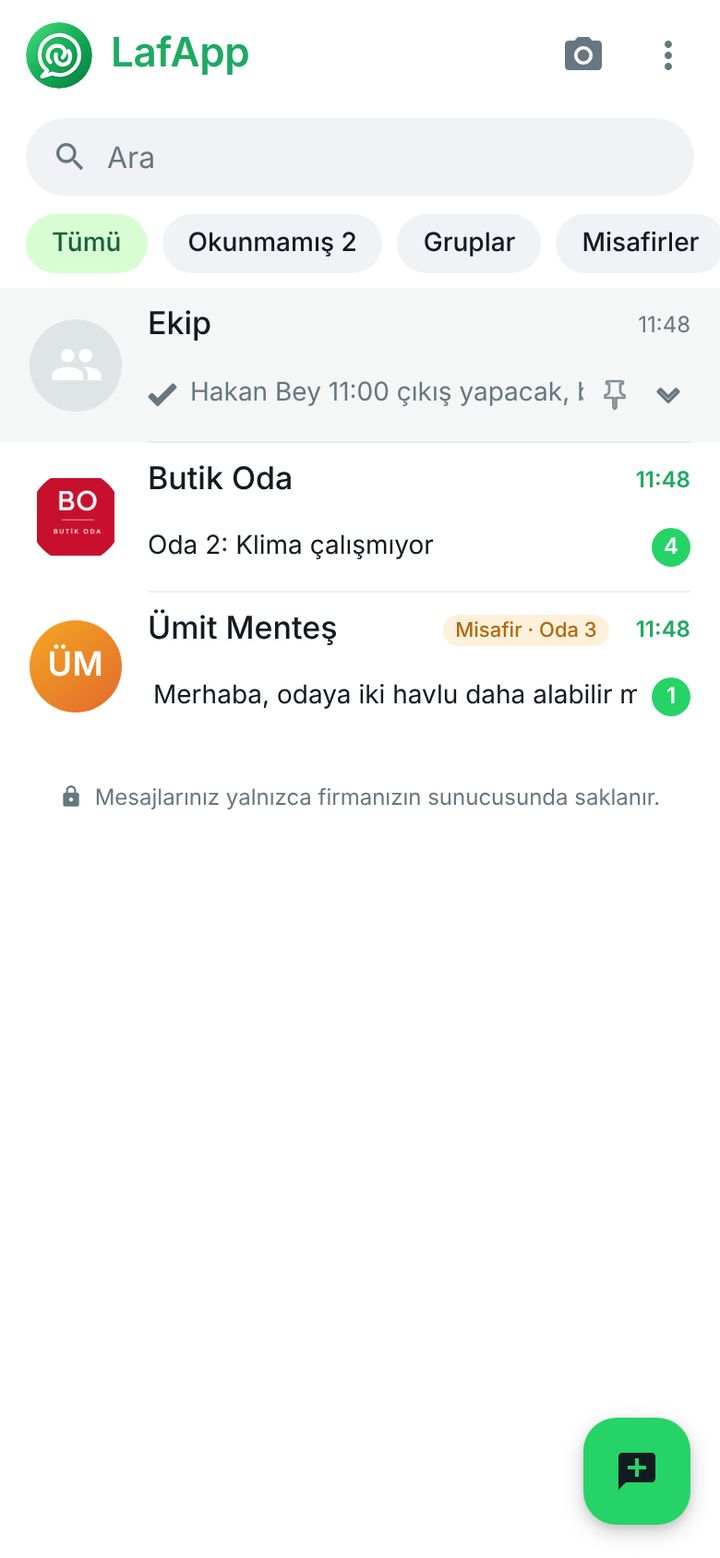
LafApp team chat

Chat with the team and with guests, inside the app. Messages are stored only on your own server.

  • A team group, one-to-one chats and a “Butik Oda” notification channel (bookings, faults, daily summary).
  • The guest writes from the hotel’s guest page; you reply here.
  • An unread counter, groups and pinned chats.
Closed in the demo, screenshot
LafApp team chat screen

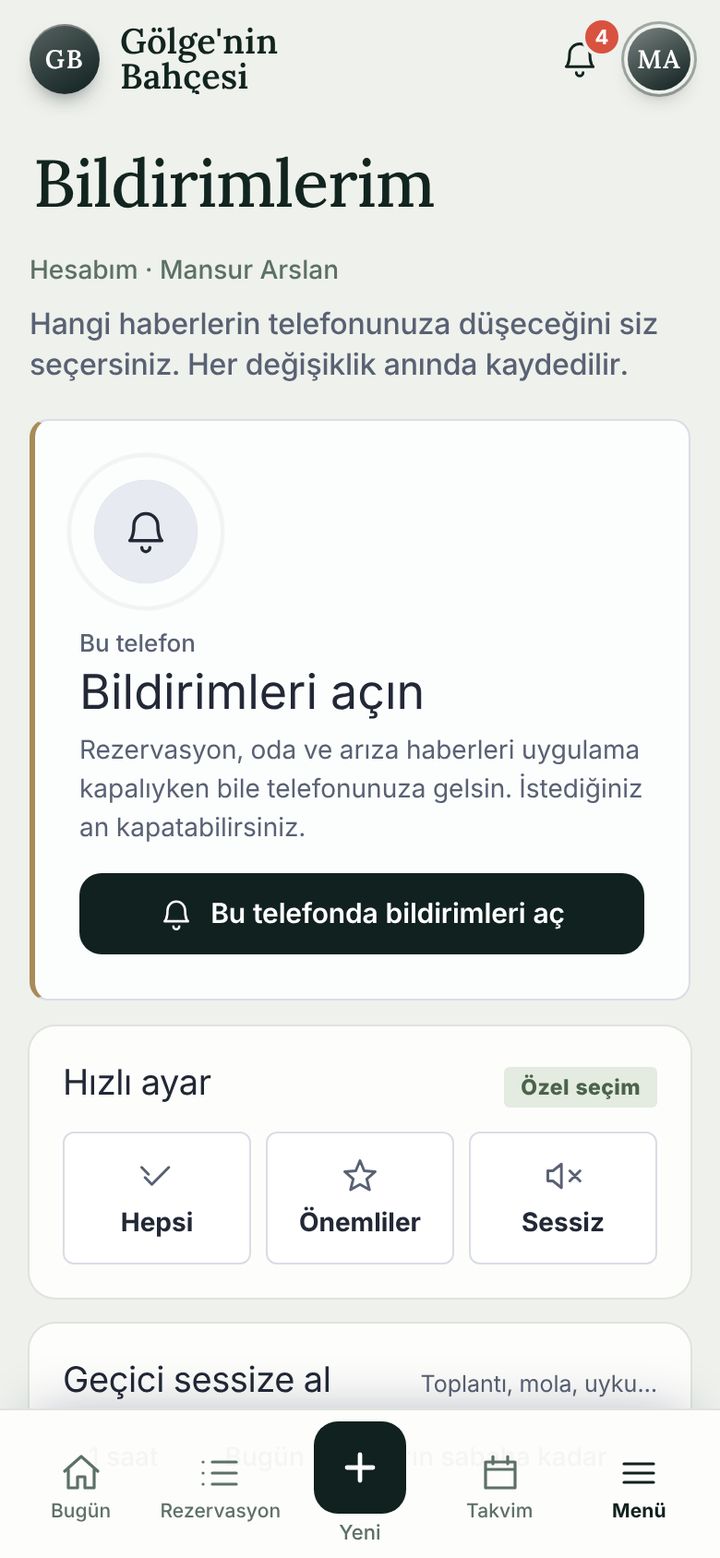
Notifications

You choose which news reaches the phone; every change saves instantly.

  • New bookings and requests, check-in, payments, faults, room ready, no-shows, unpaid balance at check-out and a good-morning summary.
  • Quick setting: All, Important, Silent; “Mute for a while” for meetings and breaks.
  • Reaches the phone even when the app is closed (once notifications are allowed).
In a real installation, instant notifications reach your team’s phones.
Notifications screen

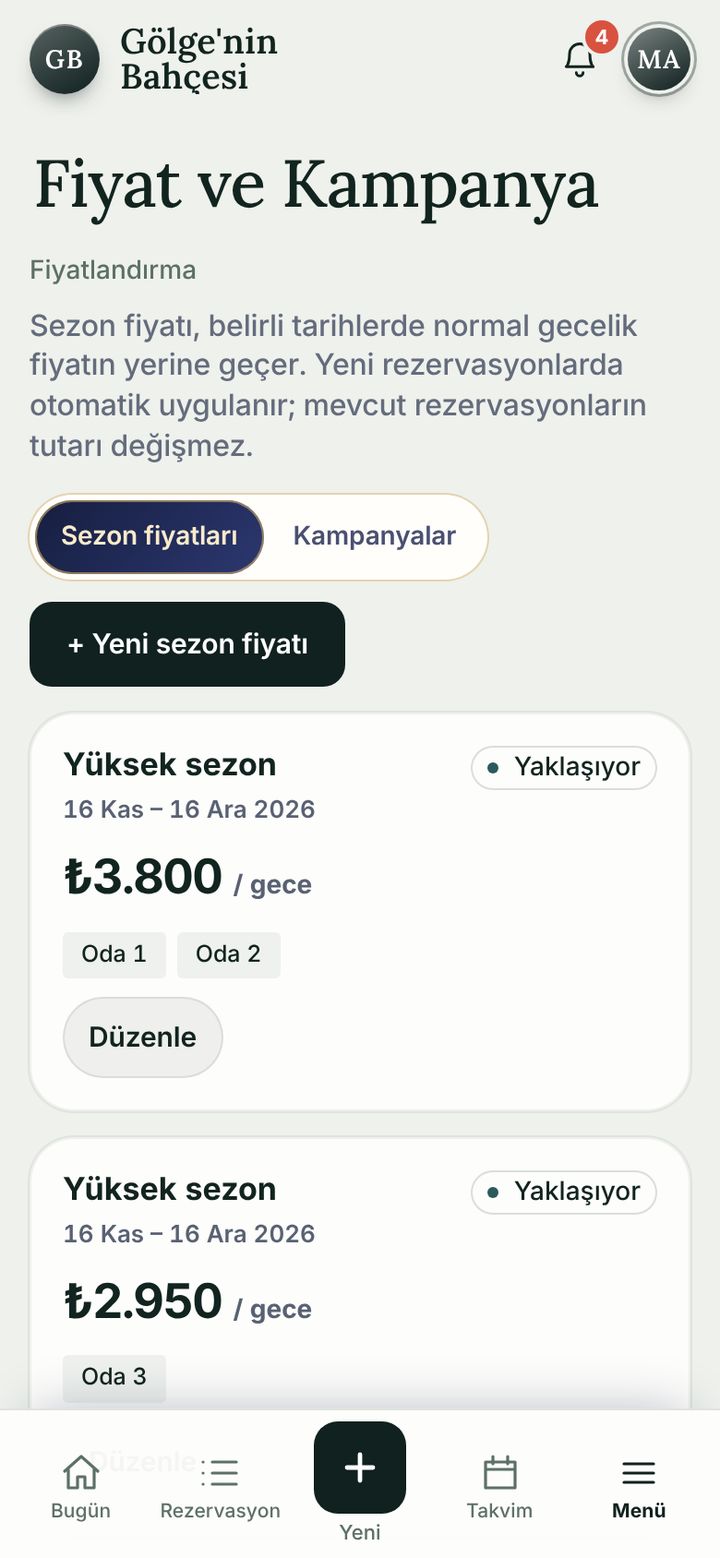
Pricing and campaigns

Season prices by date and room; campaigns are suggested automatically in the booking form.

  • Season price: date range, nightly rate, which rooms; with a status tag such as “Coming up”.
  • Campaigns: “Long stay 10%”, “Weekday deal ₺500 off”; switched on and off with one tap.
  • Applied to new bookings automatically; existing bookings keep their amount.
Pricing and campaigns screen

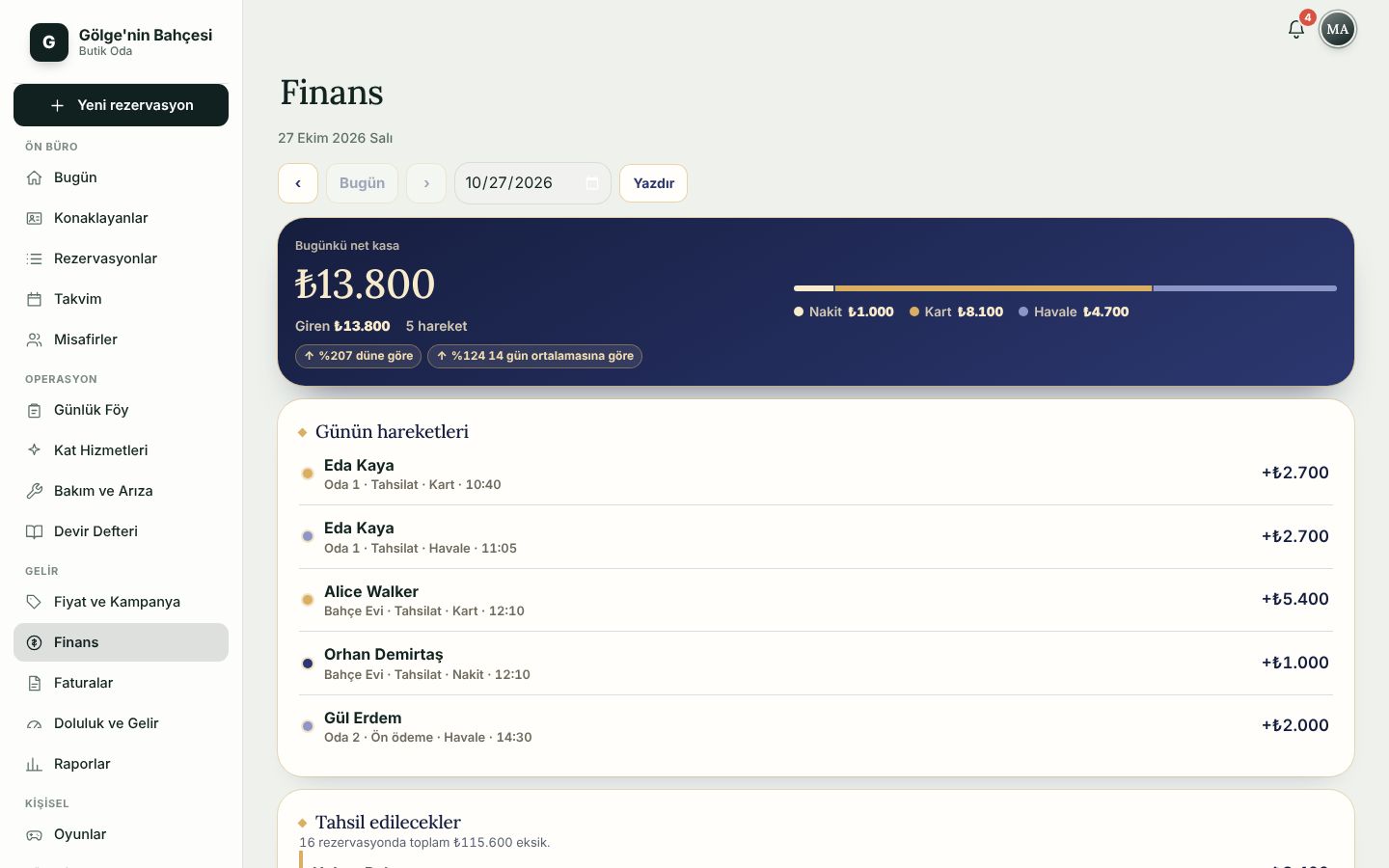
Finance

The day’s net cash and every payment, without waiting for month end.

  • Net cash, money in and refunds; the cash / card / transfer split; compared with yesterday and the 14-day average.
  • The day’s movements: who, which room, which method, at what time.
  • “To collect”: balances due, with paid and total amounts.
Finance screen
Finance (desktop)

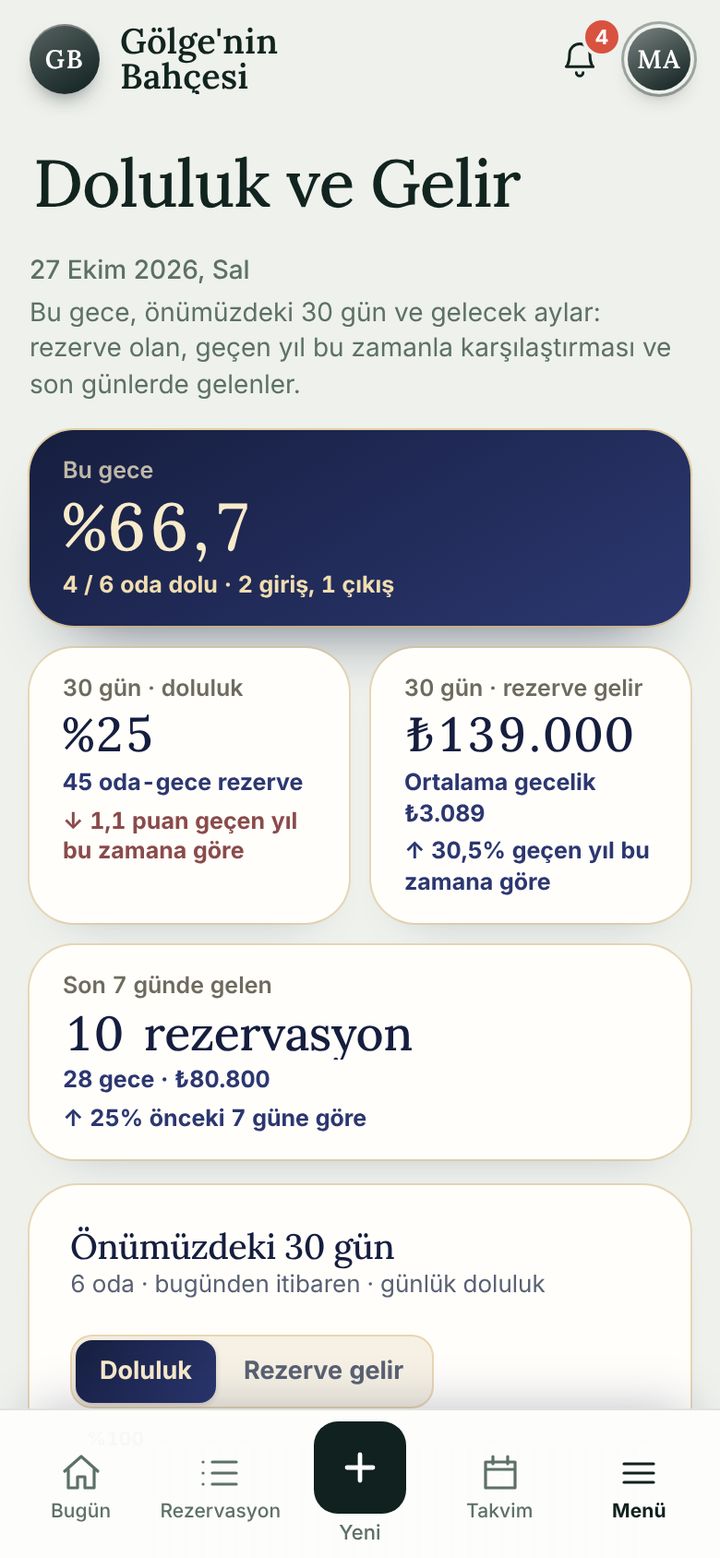
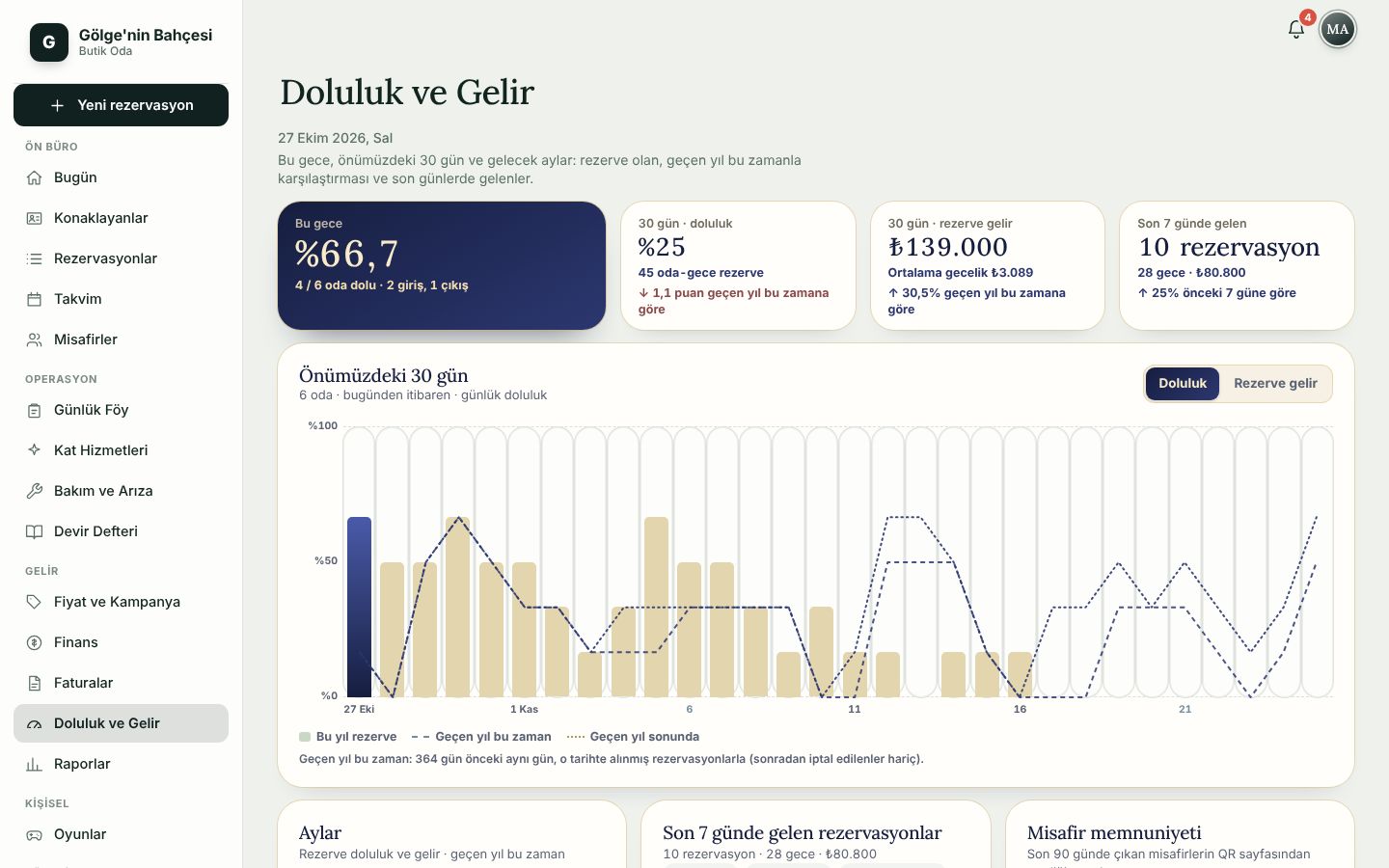
Occupancy and revenue

Occupancy tonight, the next 30 days, and a comparison with the same period last year.

  • Occupancy tonight; 30-day occupancy and booked revenue; bookings received in the last 7 days.
  • Months, rooms and weekdays; length of stay and how far ahead guests book.
  • Where bookings came from (Booking.com, Airbnb, phone…), payment methods, cancellations and no-shows.
Occupancy and revenue screen
Occupancy and revenue (desktop)

Reports

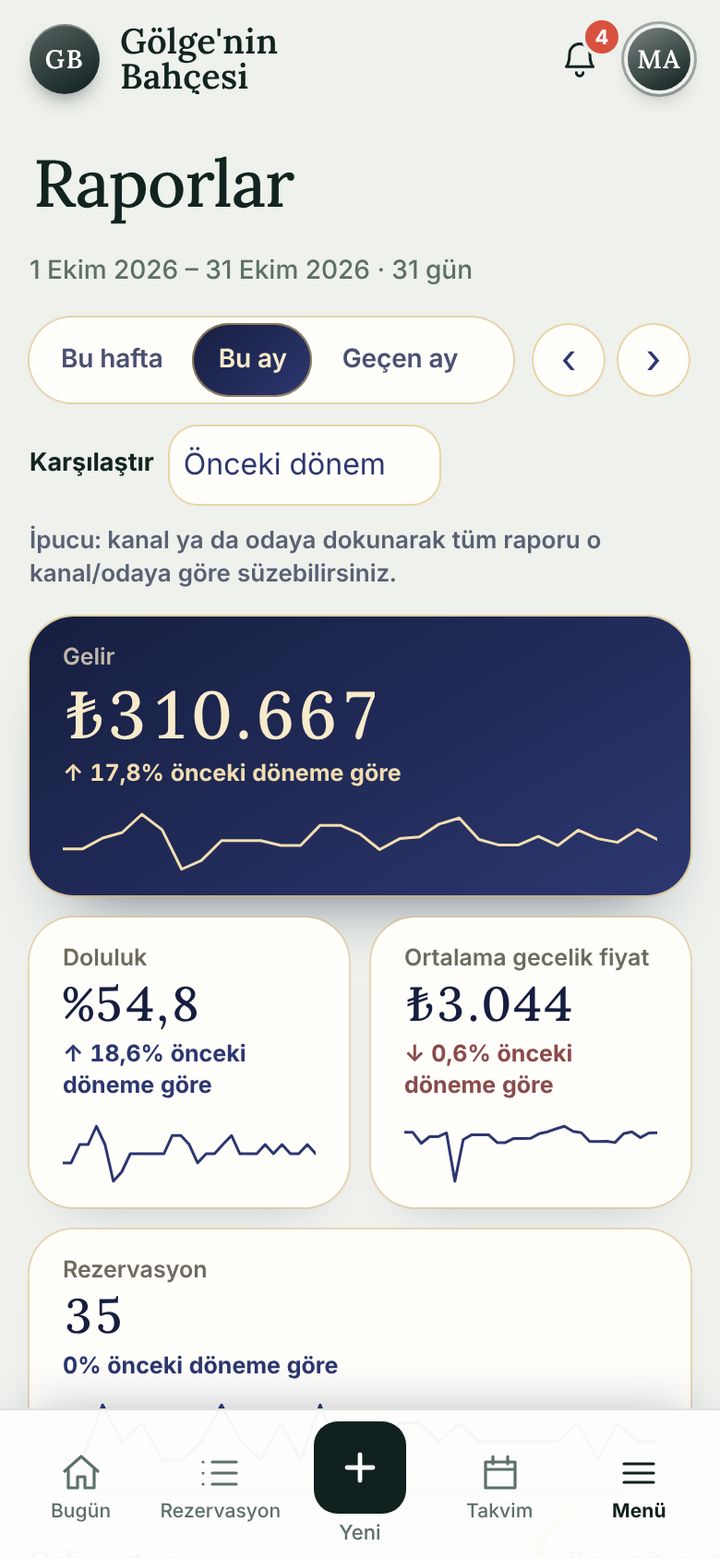
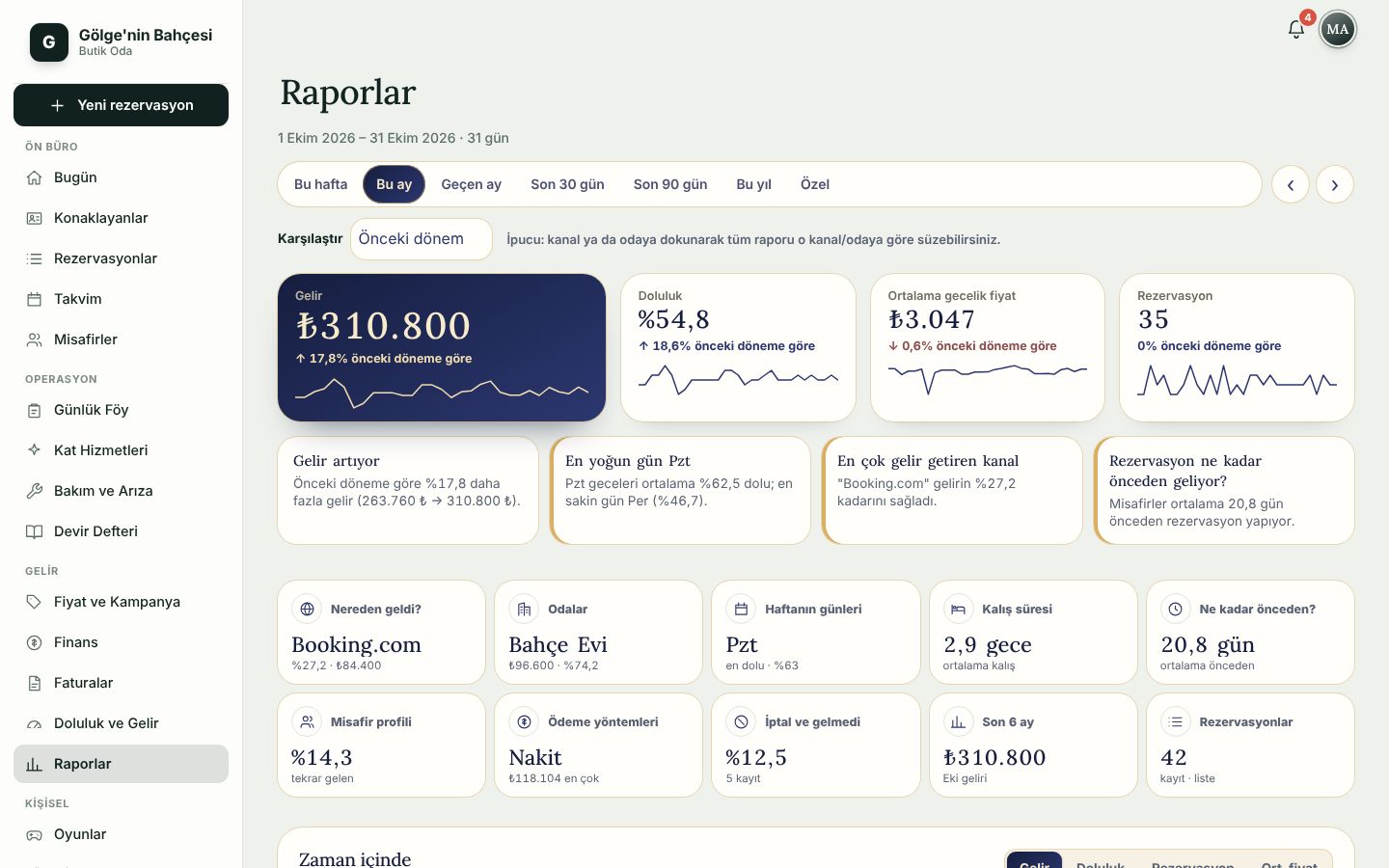
Revenue, occupancy, average nightly rate and booking count, each against the previous period.

  • This week, This month, Last month and other periods; “Compare” for the previous period.
  • Tap a channel or room to filter the whole report to it.
  • Authorised roles can export the report as CSV.
Reports screen
Reports (desktop)

Invoices

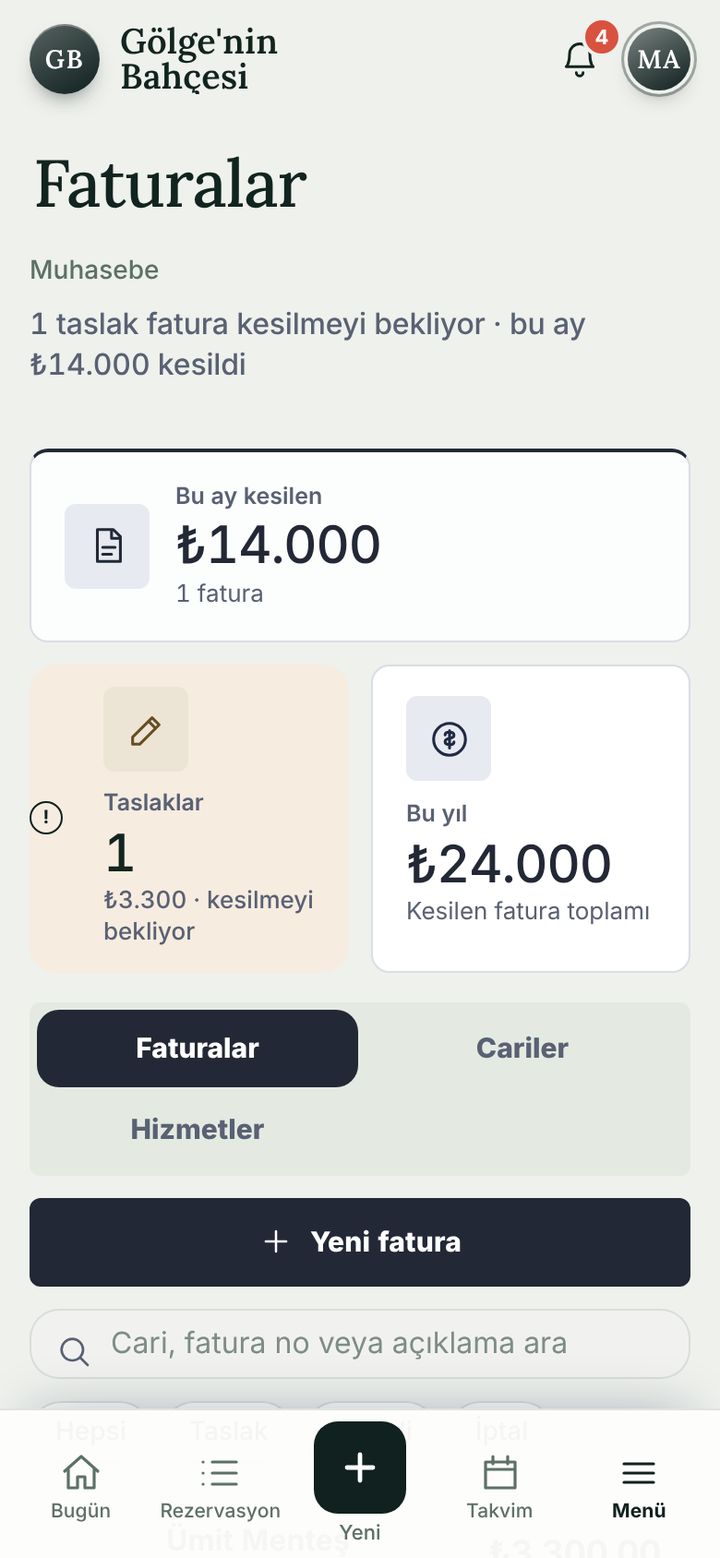
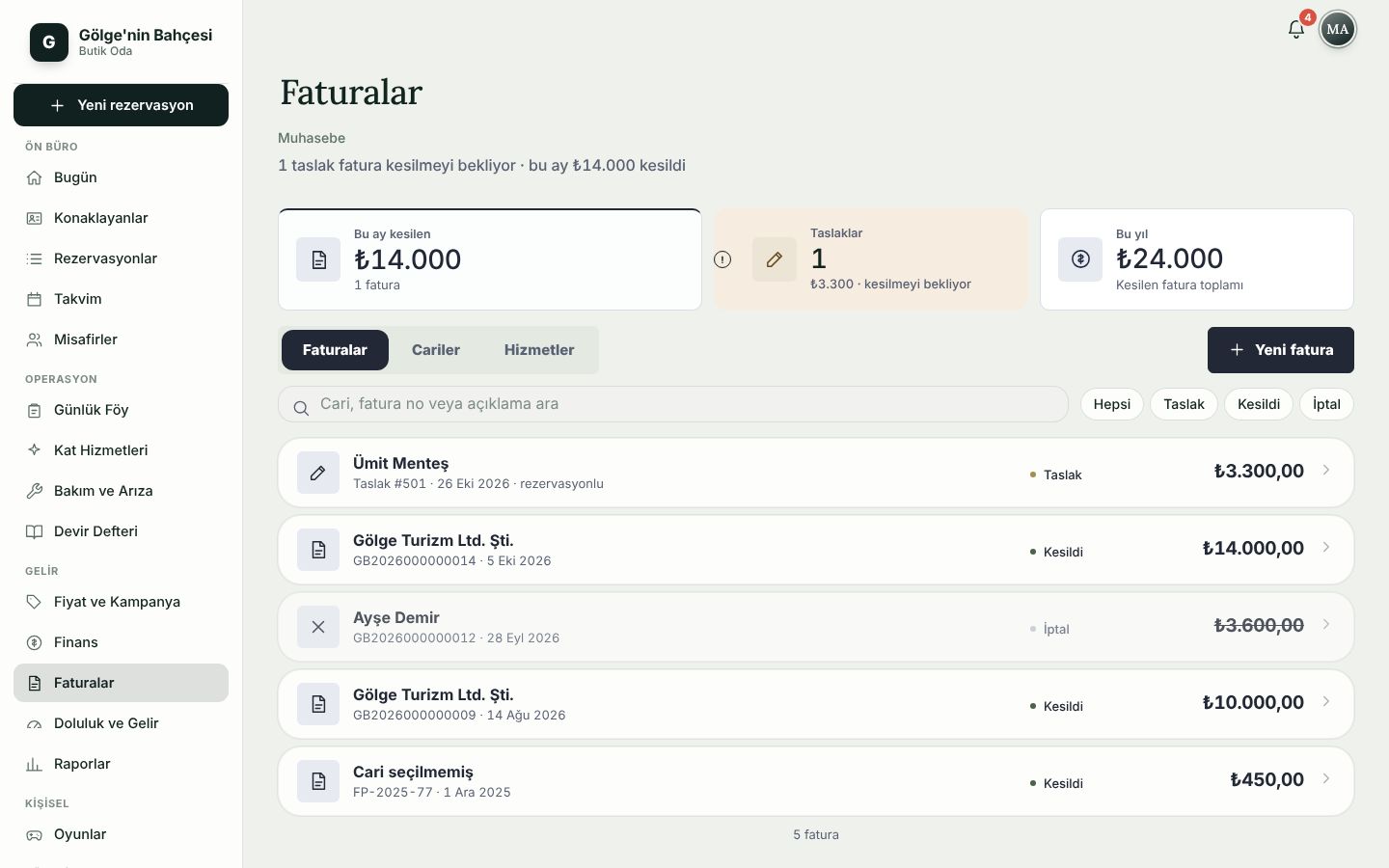
Prepare the invoice draft and, if you have a Faturaport account, send it there.

  • Tabs for Drafts, Invoices, Customers and Services; this month’s total and drafts waiting.
  • Invoice summary: seller, buyer (tax ID), lines and VAT; print or PDF.
  • A draft is “not an official invoice”; the official issue happens in Faturaport and the number is recorded in the app.
The Faturaport connection is set up once with your own account; after that, drafts go with one tap.
Invoices screen
Invoices (desktop)

Confirmation document

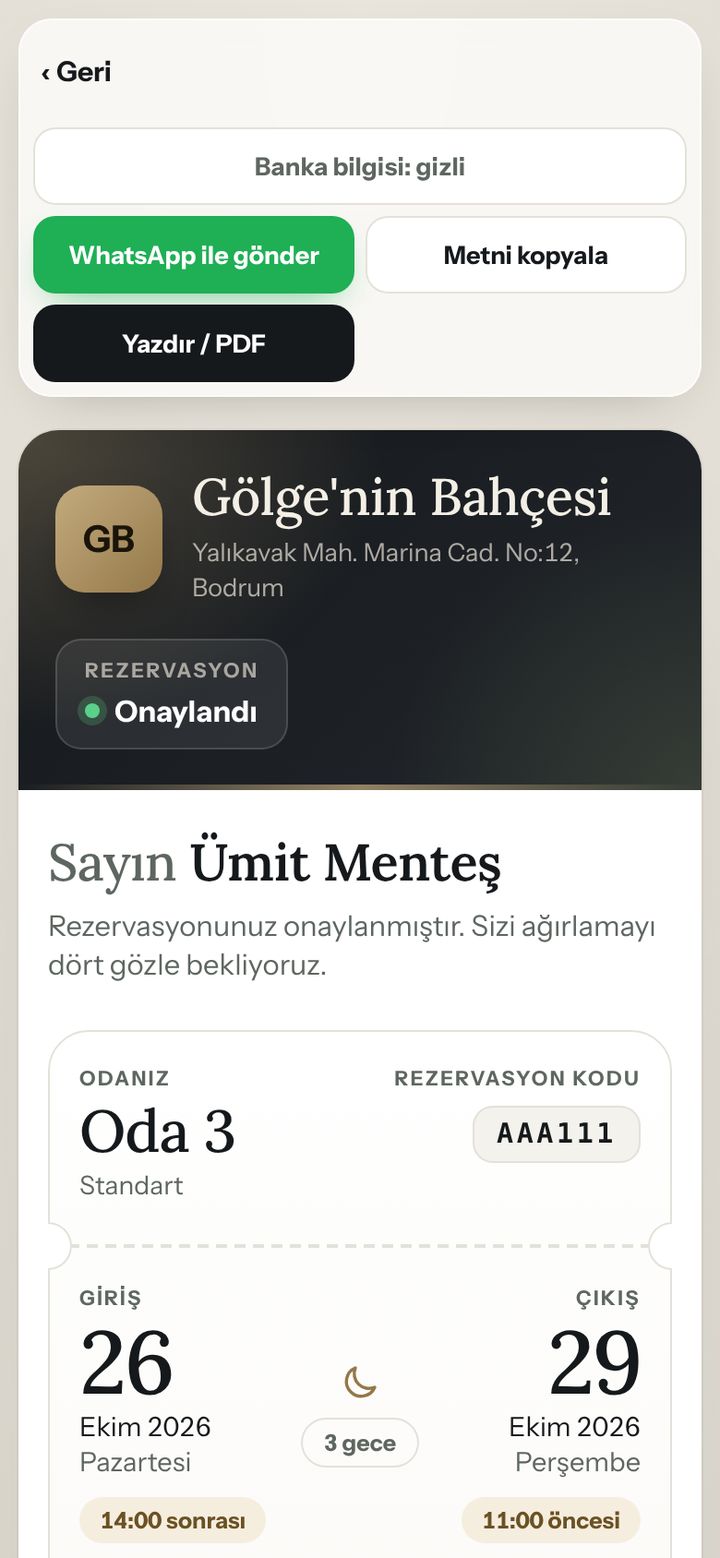
The booking confirmation goes to the guest via WhatsApp or is printed; bank details can be hidden.

  • Room, booking code, check-in and check-out times, a welcome message.
  • “Send via WhatsApp”, “Copy text” and “Print / PDF”.
  • Bank accounts and the IBAN message are set up in Settings.
Confirmation document screen

Online booking page

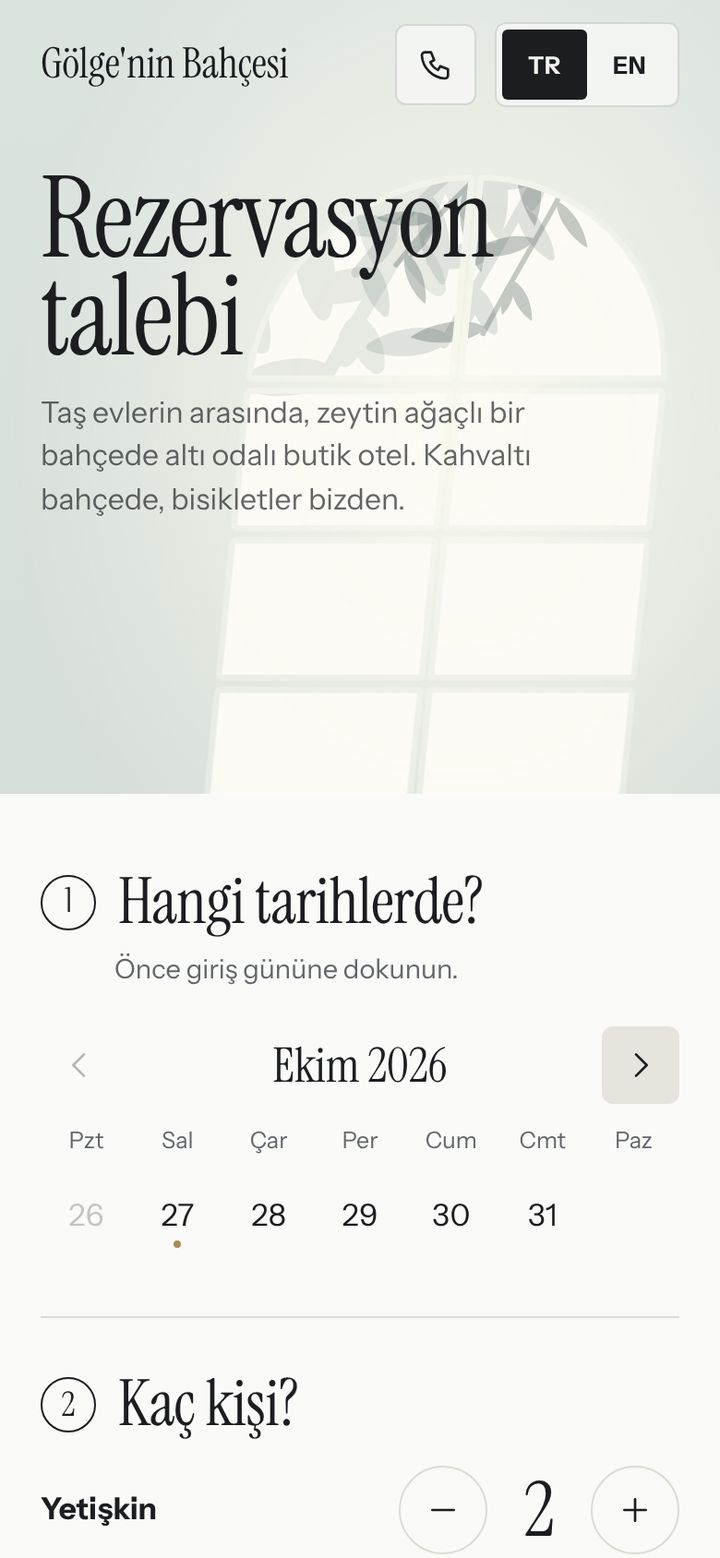
Put the link on Instagram or WhatsApp and the QR code on the desk; guests send a request.

  • Four steps: dates, guests, room, contact. There is an “any room” option too.
  • No payment is taken; your team calls to confirm availability and price. The request shows up on the Today screen.
  • The page is in Turkish and English; showing or hiding prices, and switching the page on or off, is up to you.
Closed in the demo, screenshot
Online booking page screen

Guest page (QR)

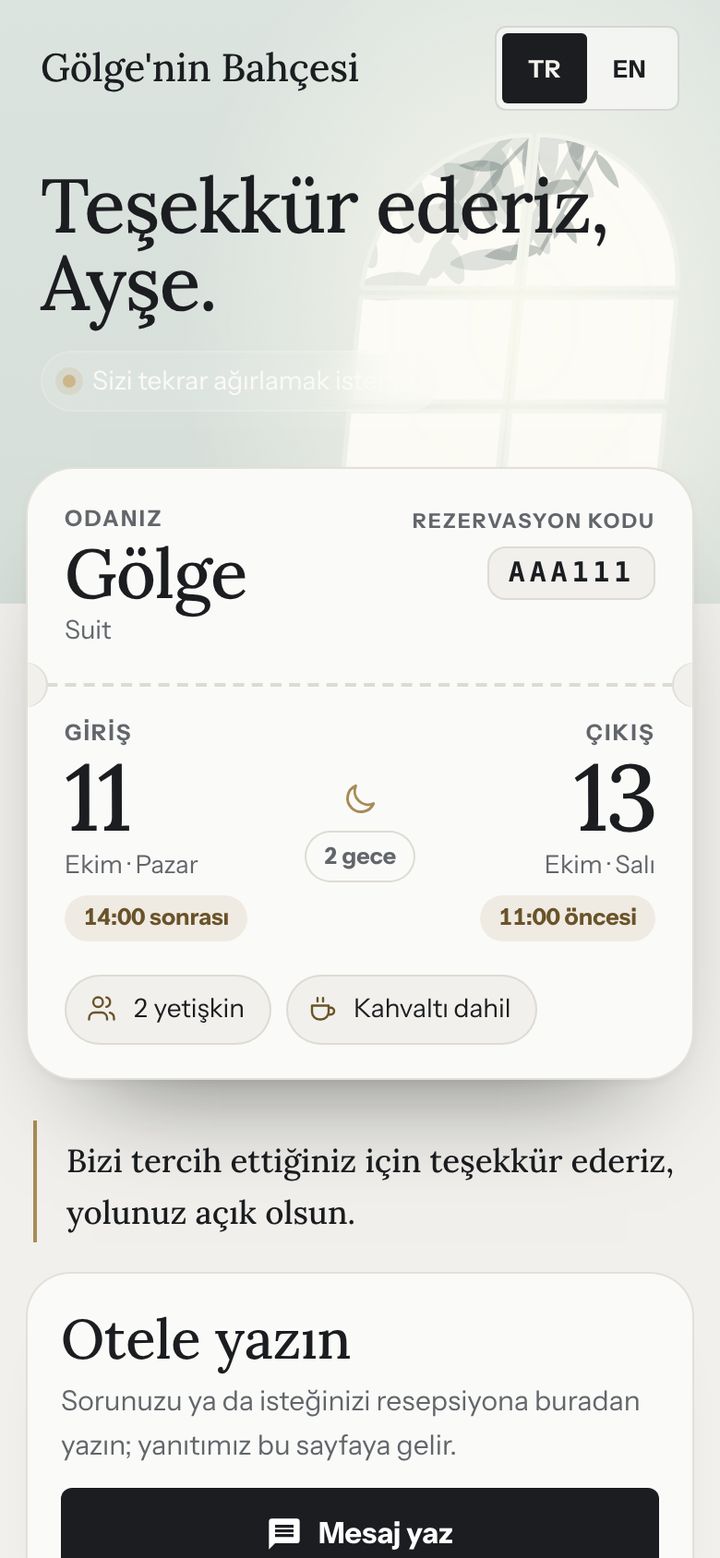
A link per booking: guests see the Wi-Fi, house rules and breakfast hours without creating an account.

  • Room, booking code, check-in and check-out times; “Write to the hotel” opens a chat with reception.
  • A “How was your stay?” rating and an optional Google review link.
  • A “For your next stay” box: you write the direct-booking offer.
Closed in the demo, screenshot
Guest page (QR) screen

Airbnb calendar sync

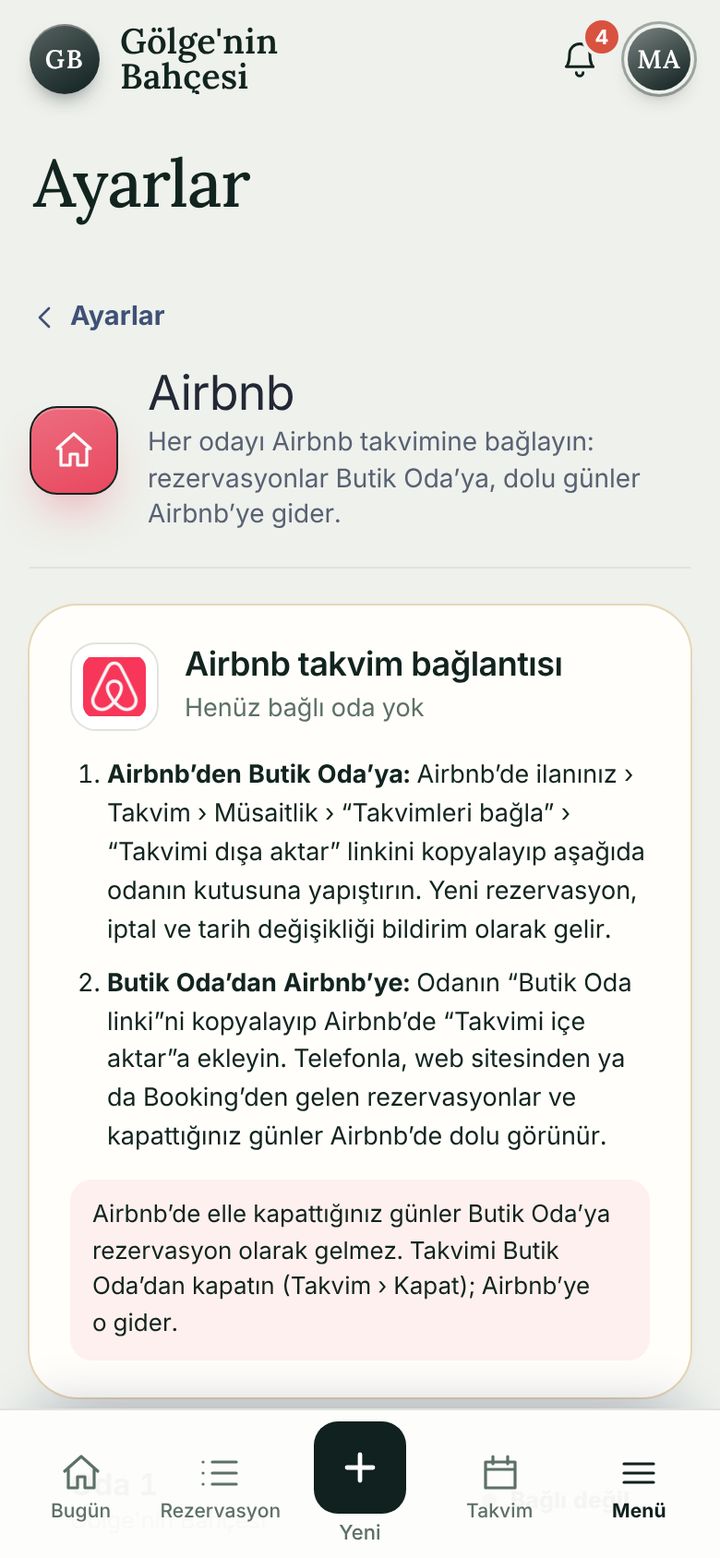
Match each Airbnb listing to a room; both calendars show the same days.

  • Airbnb bookings appear on the calendar; Airbnb receives your occupied and closed nights.
  • Works through iCal links; the screen lists the steps for both directions.
  • Booking.com and other channels are chosen as the “channel” when entering a booking.
Airbnb and other iCal calendars sync automatically every 15 minutes.
Airbnb calendar sync screen

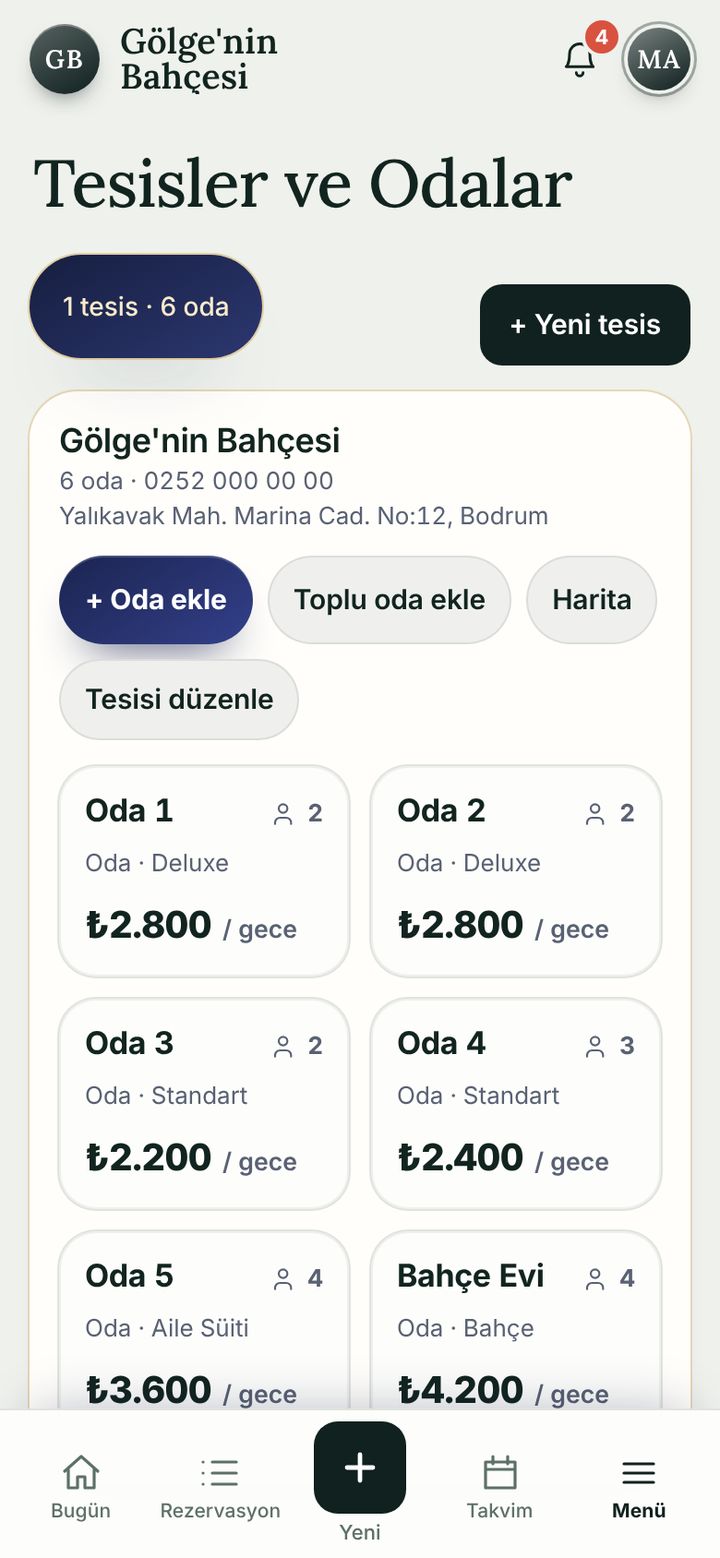
Properties and rooms

Property, room type, capacity and nightly rate; several properties in one account.

  • Add a room or use “Bulk add rooms”; room or house, minimum-night rule.
  • If the nightly rate is left empty the price is entered by hand in the booking.
  • Property details, map location and phone; add one with “+ New property”.
Properties and rooms screen

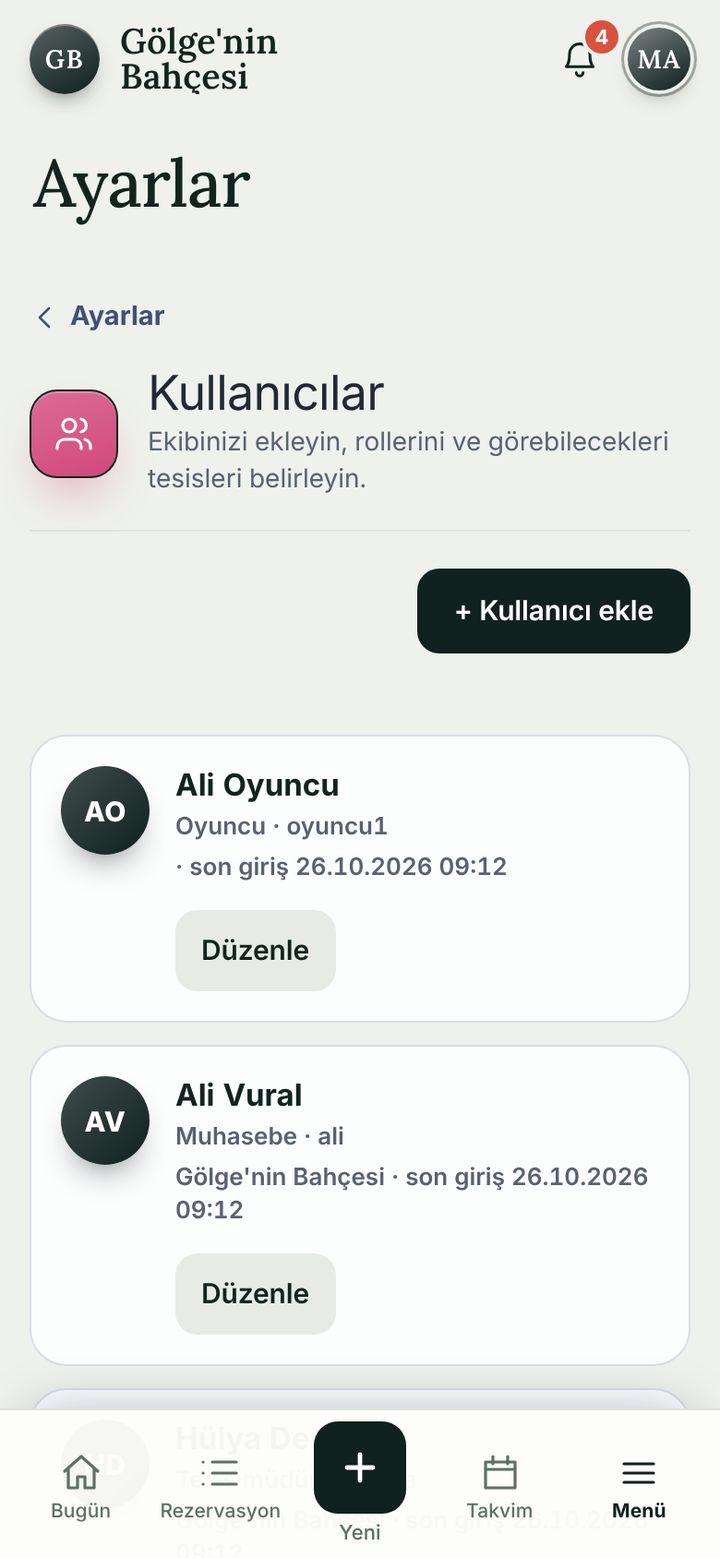
Users and roles

Add the team, pick a role and choose which properties they may see.

  • Seven roles: owner, property manager, front desk, accounting, housekeeping, read-only, player.
  • A new user gets a temporary password and a one-time sign-in link, then chooses their own password.
  • Ending sessions and resetting passwords belong to the owner.
Users and roles screen

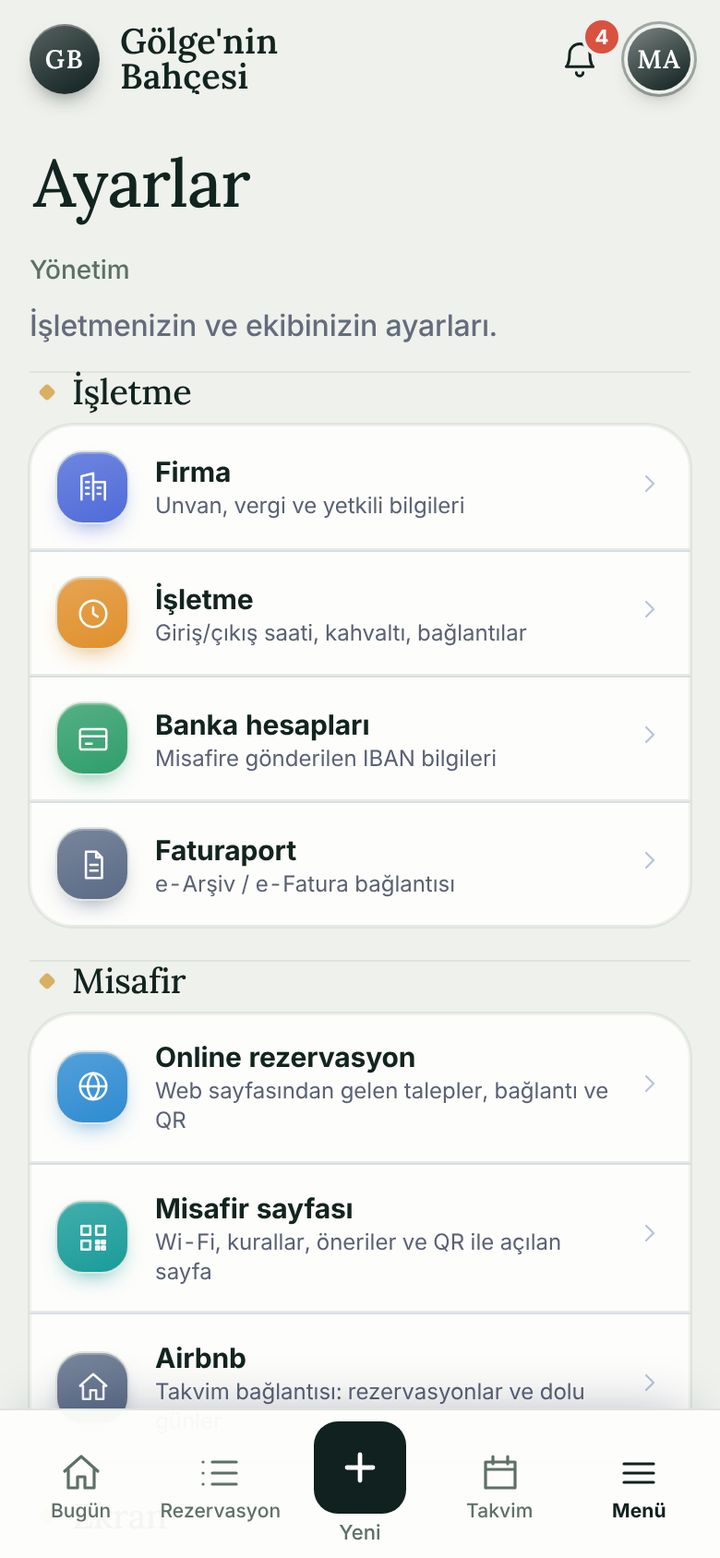
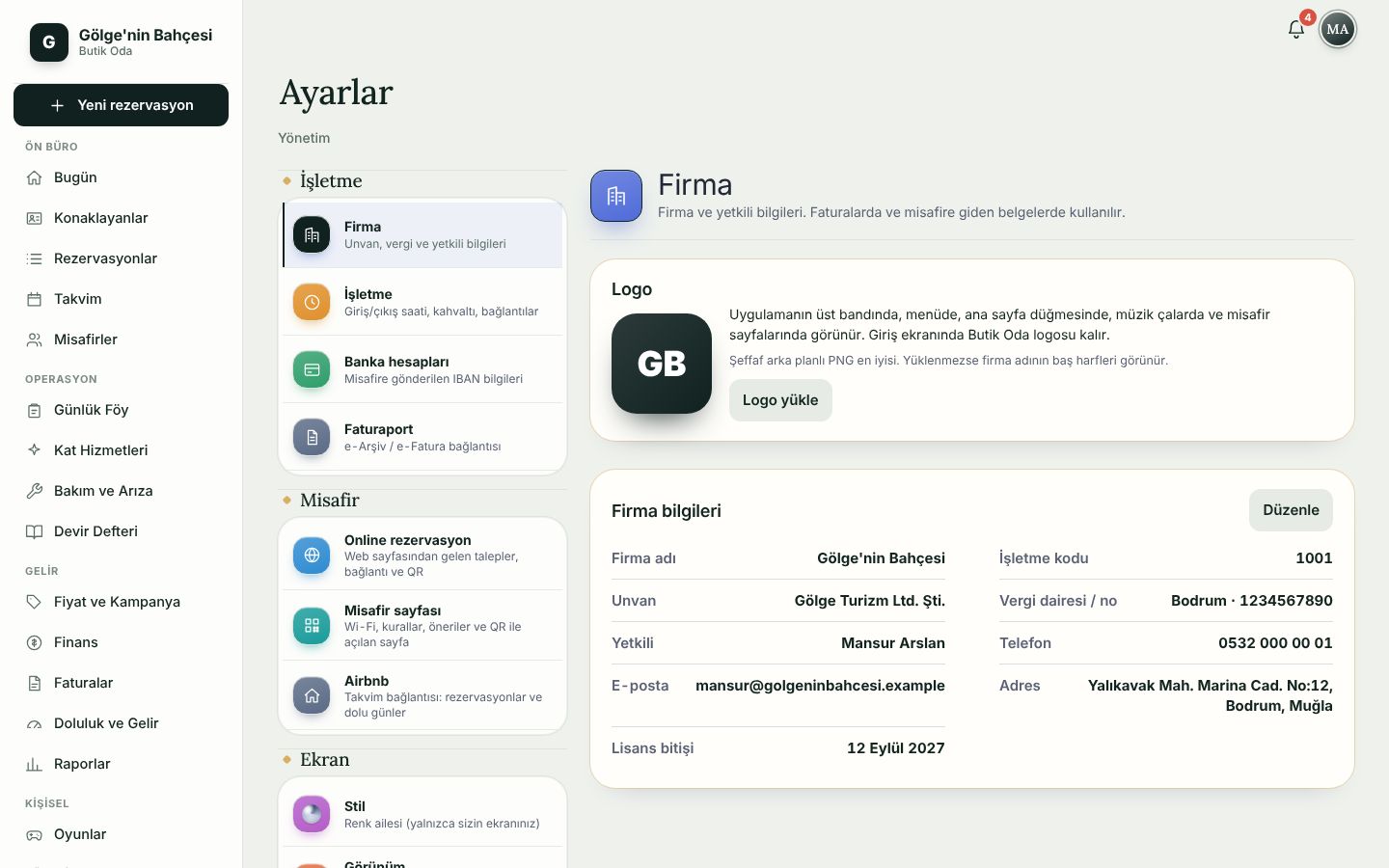
Settings

Company, business, bank accounts, Faturaport, online booking, guest page and Airbnb in one list.

  • Business: check-in / check-out times, breakfast and the welcome message.
  • Bank accounts and IBAN; shown to guests on the confirmation.
  • Faturaport: company code, client ID, client secret, environment and e-Archive series.
Settings screen
Settings (desktop)

Look and style

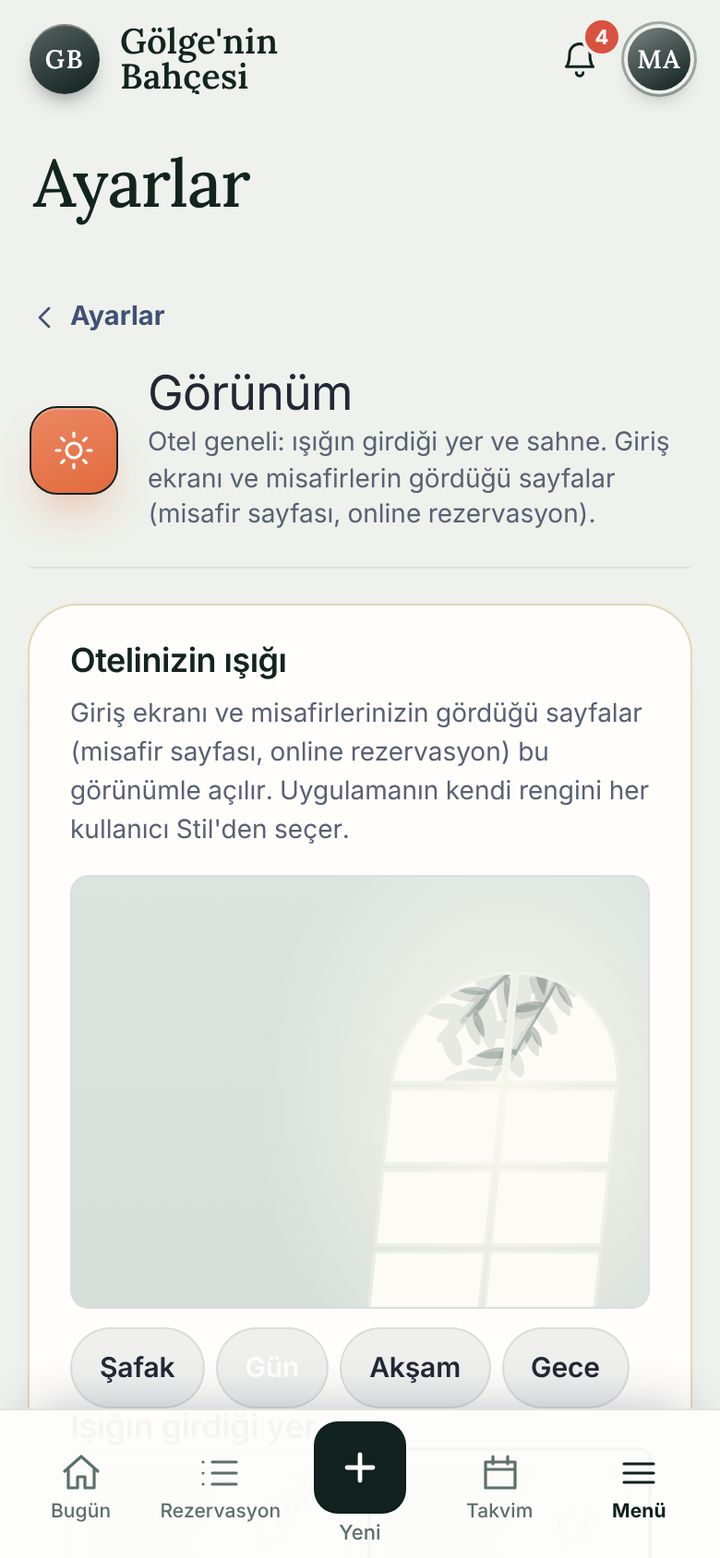
Set the look to suit your hotel; everyone can also pick their own colour and night mode.

  • “Your hotel’s light”: the look of the sign-in screen and guest pages; Dawn, Day, Dusk, Night.
  • Style: 34 colours (Vivid, Cool and airy, Flower and pastel…); changes only your own account.
  • “Back to default” undoes it in one tap.
Look and style screen

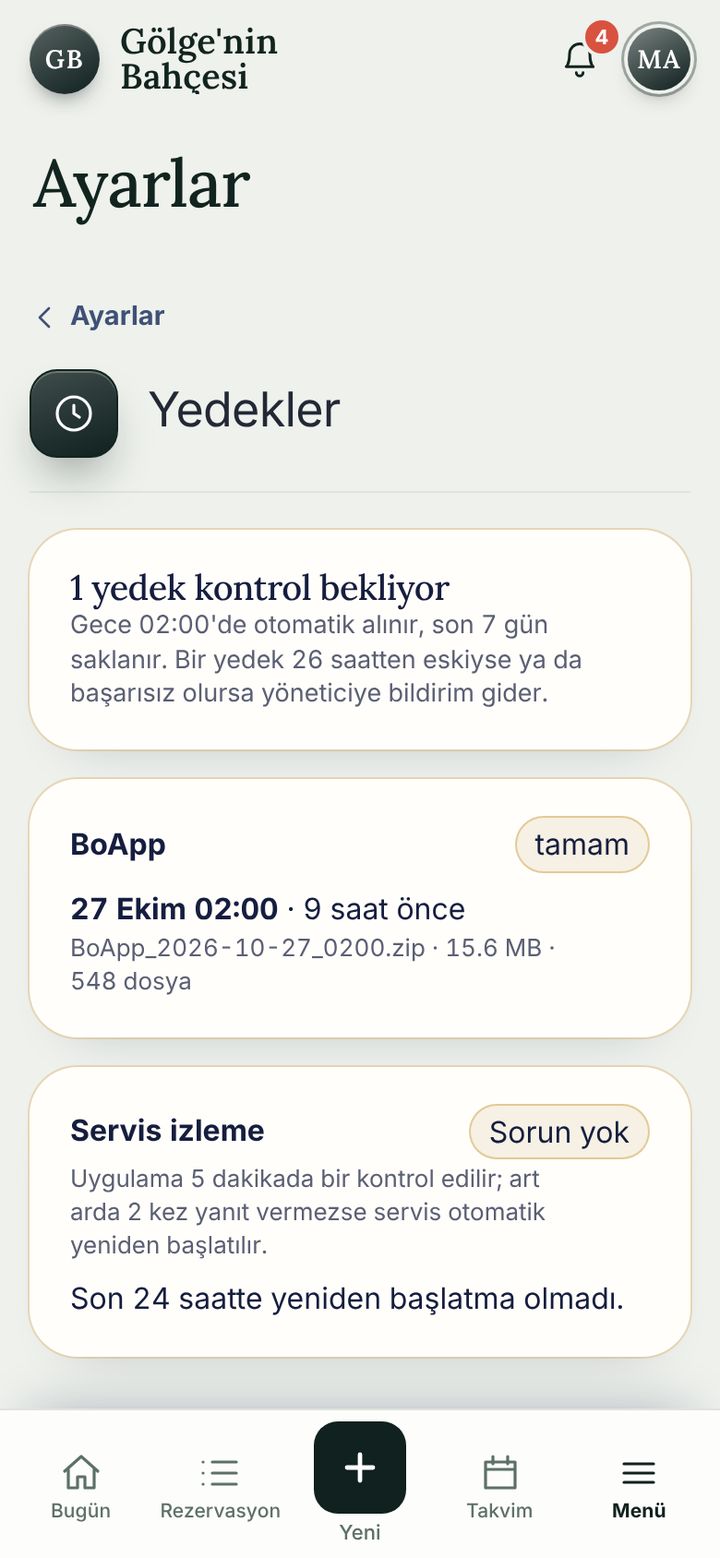
Backups and monitoring

An automatic backup runs every night at 02:00 and the last 7 days are kept.

  • If a backup is older than 26 hours or fails, the manager is notified.
  • Service watch: the app is checked every 5 minutes and restarted if it fails to answer twice in a row.
  • Each backup shows its date, size and file count.
Backups and monitoring screen

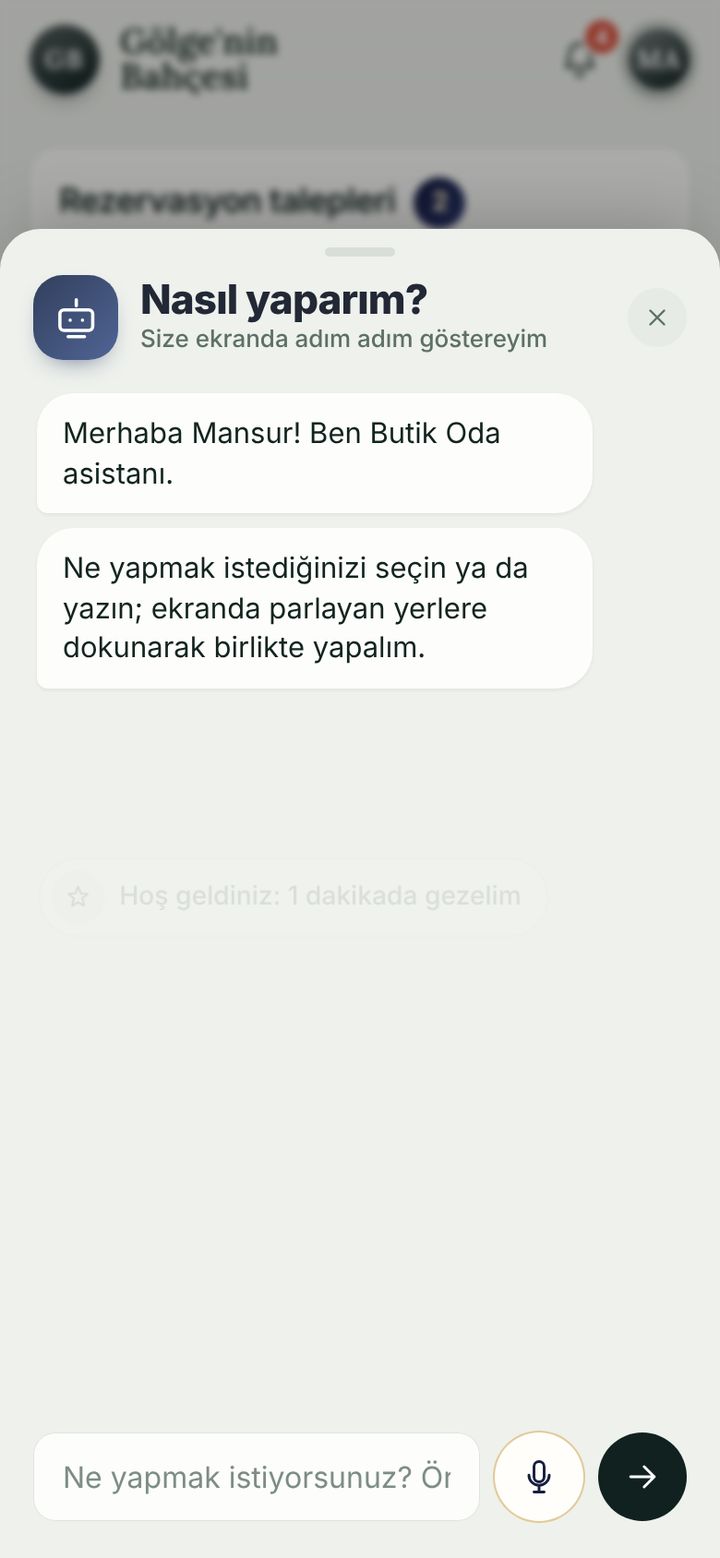
Help and assistant

72 help topics and a “How do I…?” assistant that highlights the right button on screen, step by step.

  • Type or speak your question; the assistant guides you on the screen.
  • Topics are grouped under Daily, Reservations and more; a “Learning list” tracks your progress.
  • “Show me” walks you through the topic on the app’s own screen.
Help and assistant screen

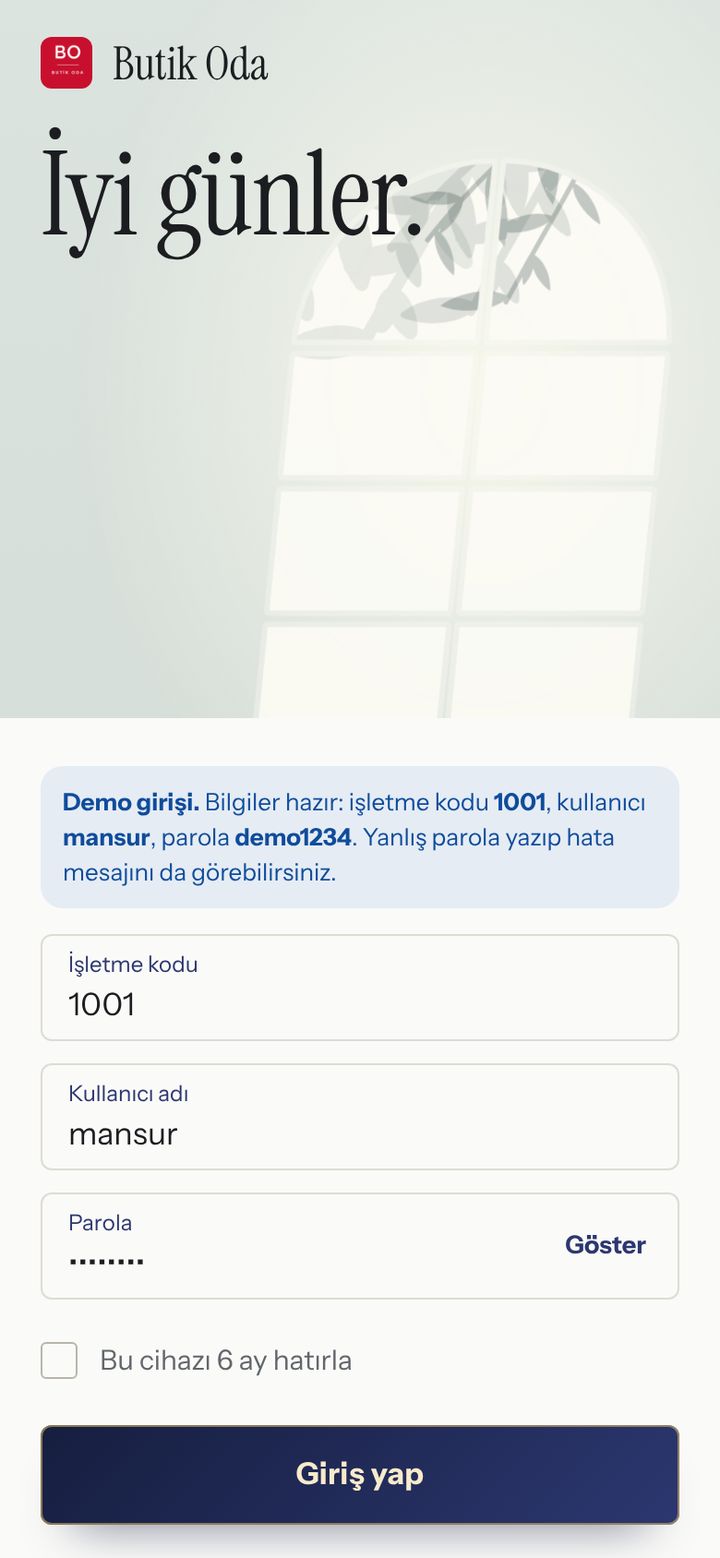
Sign-in and security

Business code, user name and password; a clear message when something is wrong.

  • On a wrong sign-in: “Business code, user name or password is wrong.”
  • A “Remember this device for 6 months” option.
  • On a page you may not open you get a warning such as “No access to the Finance page.”; the bottom menu only lists the pages for the role.
Sign-in and security screen

Games

Play with your colleagues on breaks; the games are visible only to the business’s staff.

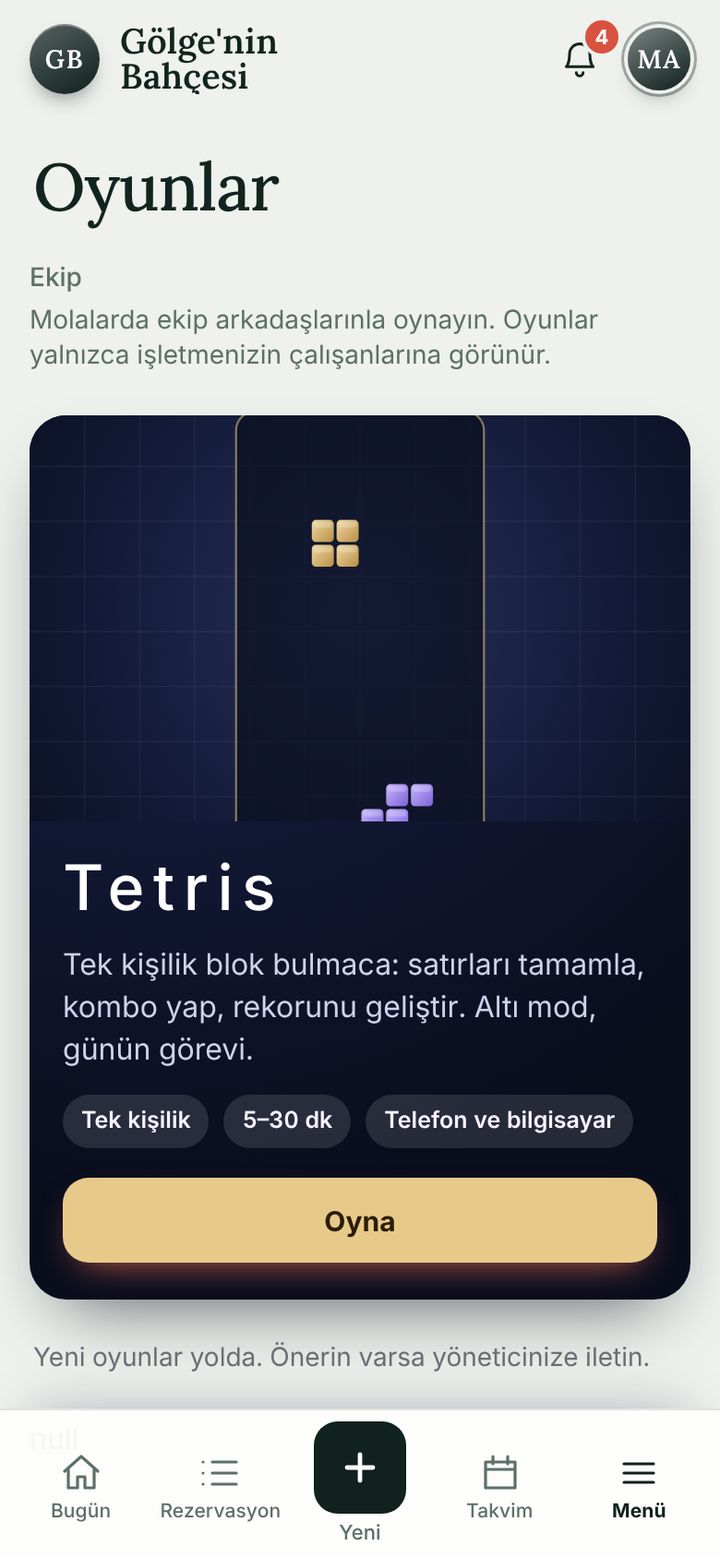
  • Yabu, Okey, Who Am I? and Tetris on one screen.
  • A “Player” account sees only the games; it cannot reach property data.
  • Work screens and games can be separated with roles.
Games screen

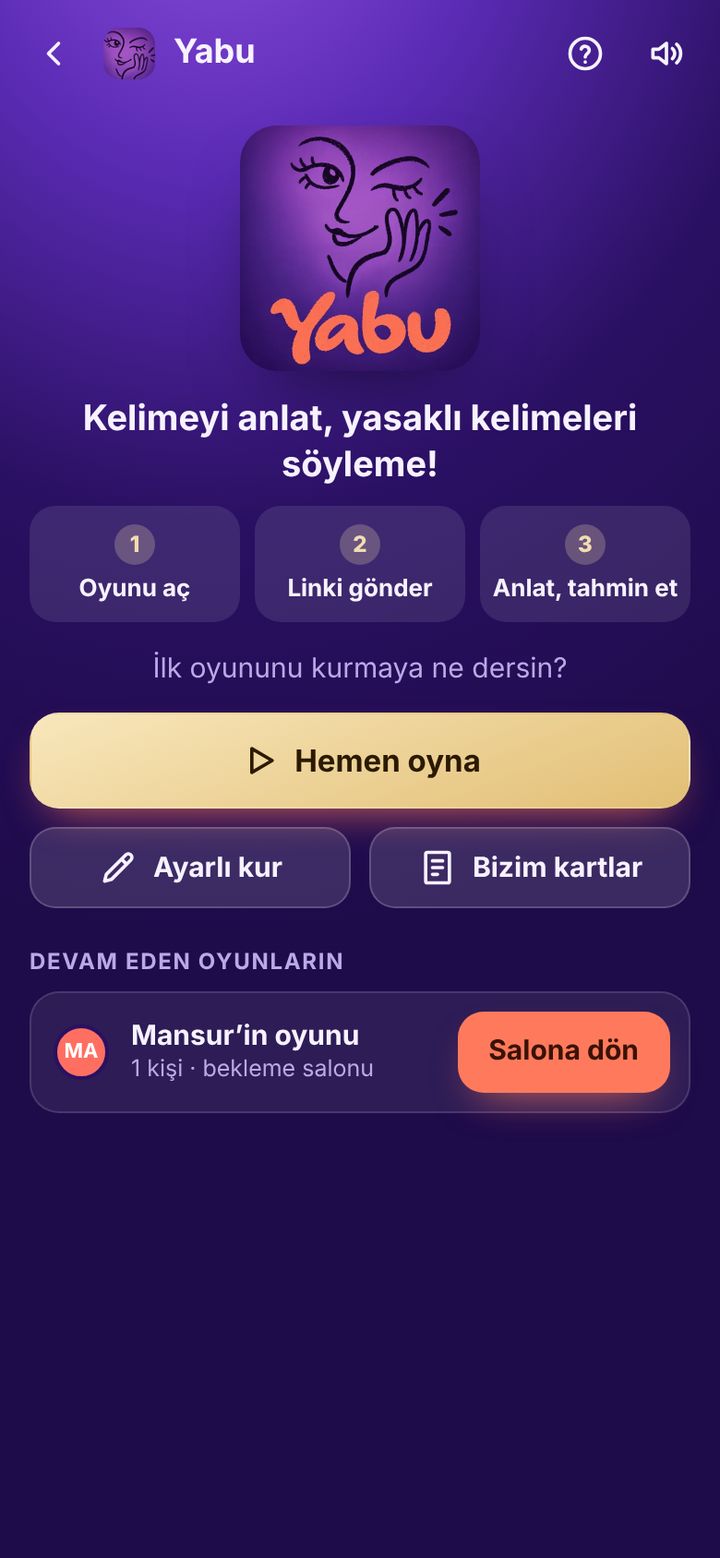
Yabu

Form teams, describe the word, avoid the forbidden ones.

  • 2 to 20 players, 10-30 minutes; in the same room or by voice.
  • “Open the game, send the link, describe and guess” in three steps.
Closed in the demo, screenshot
Yabu screen

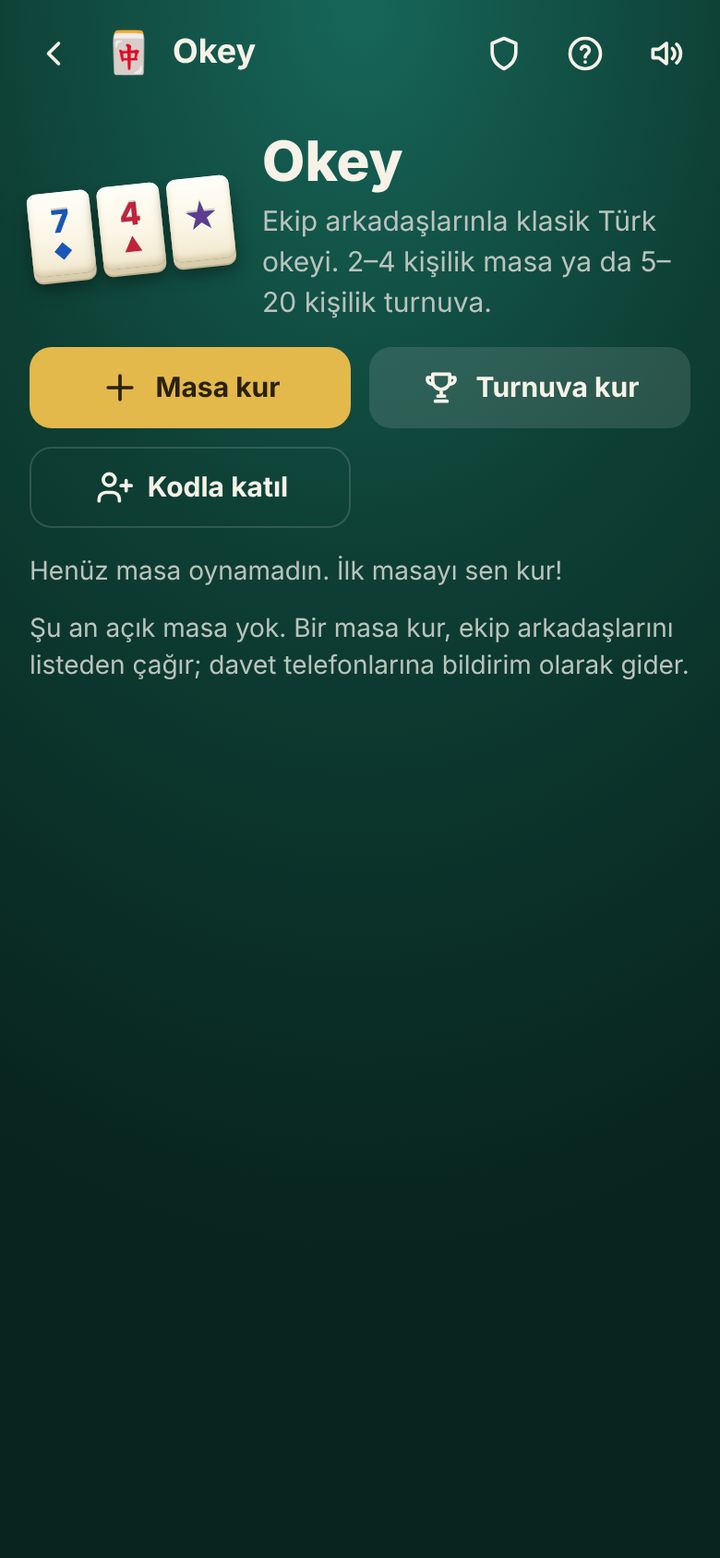
Okey

Okey for 2-4 players, with a step-by-step guide for people who never played.

  • Tiles are sorted and the first to complete a hand wins; every step is shown in the guide.
Closed in the demo, screenshot
Okey screen

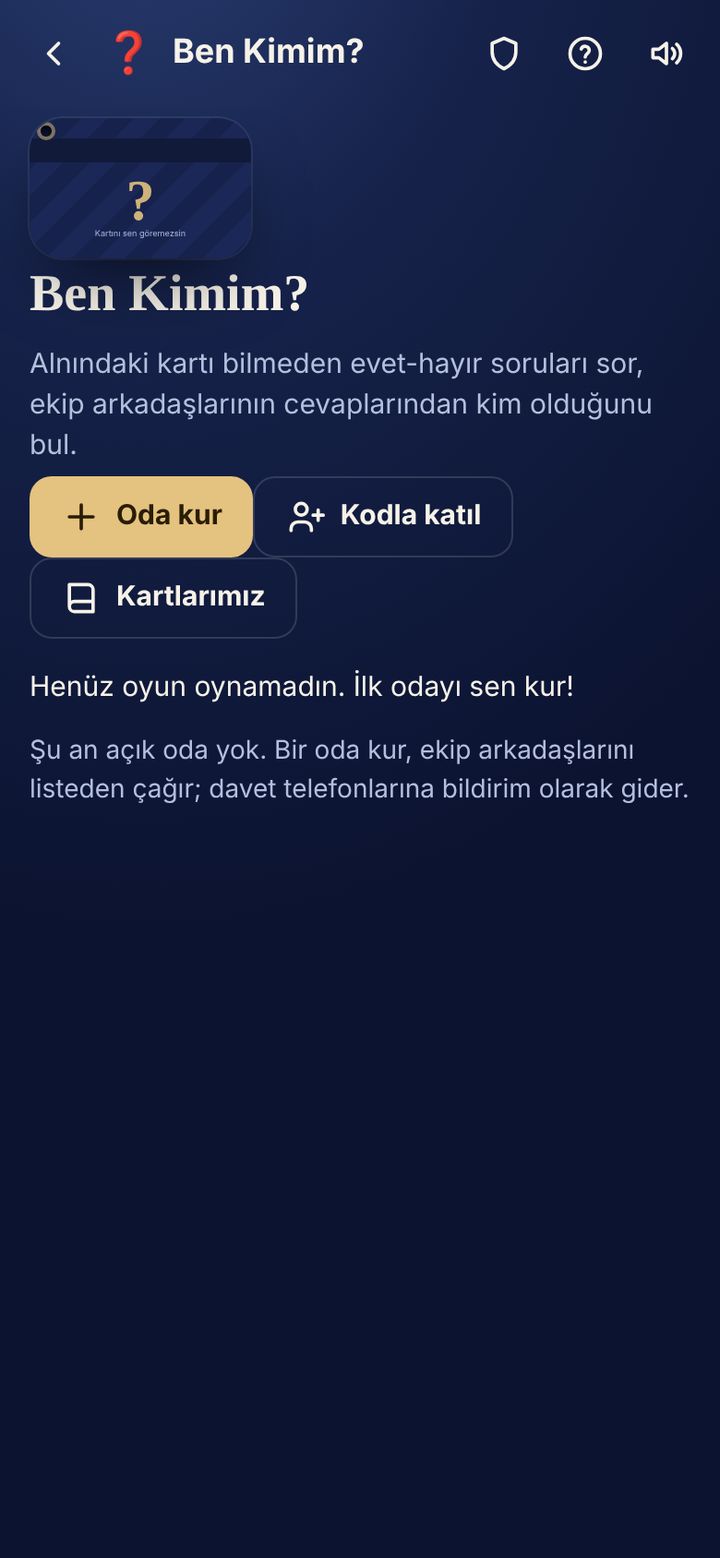
Who Am I?

The card is on your phone; you can’t see it, your friends can. Find it with yes / no questions.

  • 2 to 20 players; ready-made questions, no typing required.
Closed in the demo, screenshot
Who Am I? screen

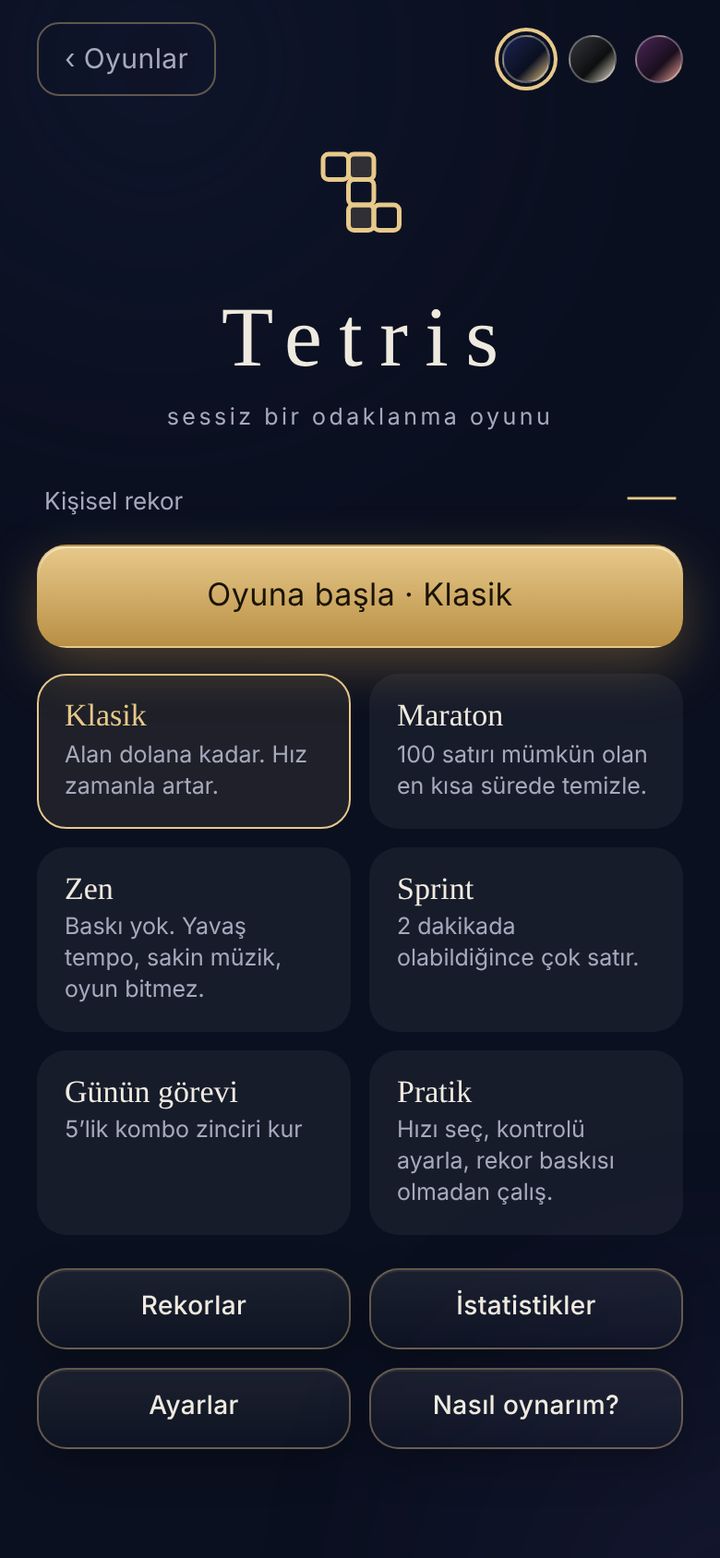
Tetris

A quiet focus game: complete rows and build combos.

  • Classic, Marathon, Zen, Sprint, Daily challenge and Practice modes.
  • Personal records and statistics; plays on phone and desktop.
Tetris screen

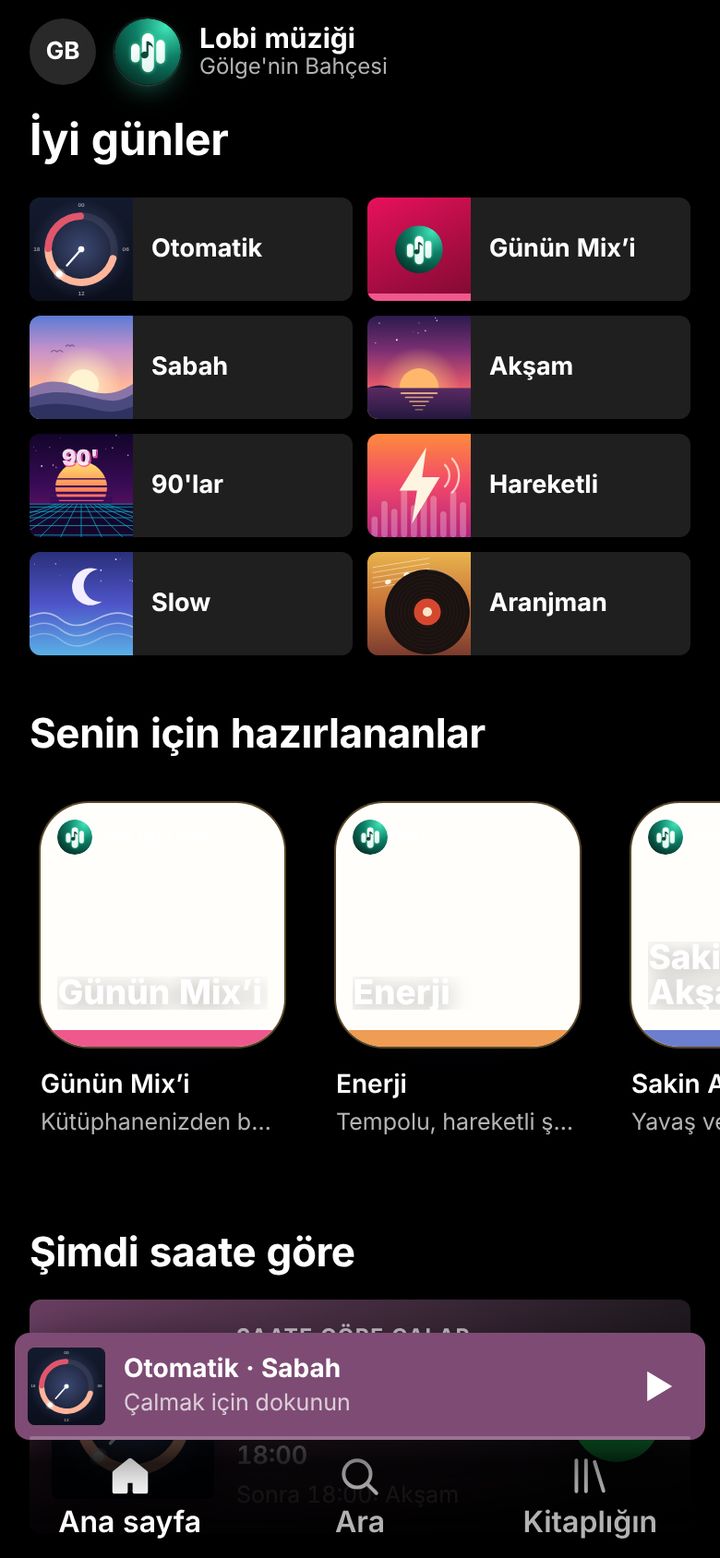
Tıngırify

The hotel’s own music app: mood tiles such as Morning, Evening, Upbeat, Slow.

  • Mixes picked by time of day and your own playlists.
  • Run the lobby or garden speaker from here; switching it on or off belongs to the owner.
Closed in the demo, screenshot
Tıngırify screen

Screenshots are from the real app.

The same app on a desktop.

On a wide screen a side menu opens and pages spread into columns. Your account and data are the same.

TodayCalendarReservationsNew reservationFinanceOccupancy and revenueReportsHousekeeping
Global

Eight languages, eight cities, one day.

See what is happening in hotels right now, city by city. Spin the globe with your finger; tap a city and this page opens in its language, with prices in its currency.

Everyone sees only their own work.

Seven roles, each with its own permissions. A page a role may not open is not even in the menu. Study the table, then switch roles in the demo.

OwnerSees and manages everything.
Property managerRuns the property; prices and campaigns.
Front deskBookings, check-in/out, payments.
AccountingPayments, finance and reports.
HousekeepingOnly the room cleaning screen.
Read-onlyView only.
PlayerPlays games only; sees nothing else.
PermissionOwnerProperty managerFront deskAccountingHousekeepingRead-onlyPlayer
Front desk
View reservationsAllowedAllowedAllowedAllowedNot allowedAllowedNot allowed
Create and edit reservationsAllowedAllowedAllowedNot allowedNot allowedNot allowedNot allowed
Cancel, mark no-showAllowedAllowedAllowedNot allowedNot allowedNot allowedNot allowed
Override a price by handAllowedAllowedAllowedNot allowedNot allowedNot allowedNot allowed
Check-in, check-out, ID scanAllowedAllowedAllowedNot allowedNot allowedNot allowedNot allowed
View / delete ID photosAllowedAllowedNot allowedNot allowedNot allowedNot allowedNot allowed
Record paymentsAllowedAllowedAllowedAllowedNot allowedNot allowedNot allowed
Manage the blacklistAllowedAllowedNot allowedNot allowedNot allowedNot allowedNot allowed
Operations
Change room cleaning statusAllowedAllowedAllowedNot allowedAllowedNot allowedNot allowed
Log a faultAllowedAllowedAllowedNot allowedAllowedNot allowedNot allowed
See faults and shift notesAllowedAllowedAllowedNot allowedAllowedAllowedNot allowed
Handle guest requestsAllowedAllowedAllowedNot allowedAllowedNot allowedNot allowed
Write handover notesAllowedAllowedAllowedNot allowedNot allowedNot allowedNot allowed
See the daily sheetAllowedAllowedNot allowedNot allowedNot allowedNot allowedNot allowed
LafApp team chatAllowedAllowedAllowedAllowedAllowedNot allowedNot allowed
Money
Finance (daily cash)AllowedAllowedNot allowedAllowedNot allowedNot allowedNot allowed
View reportsAllowedAllowedNot allowedAllowedNot allowedAllowedNot allowed
Export reportsAllowedAllowedNot allowedAllowedNot allowedNot allowedNot allowed
View invoicesAllowedAllowedNot allowedAllowedNot allowedNot allowedNot allowed
Prepare invoicesAllowedNot allowedNot allowedAllowedNot allowedNot allowedNot allowed
Campaigns, rooms and pricesAllowedAllowedNot allowedNot allowedNot allowedNot allowedNot allowed
Management
Company, IBAN and Faturaport settingsAllowedNot allowedNot allowedNot allowedNot allowedNot allowedNot allowed
Manage usersAllowedNot allowedNot allowedNot allowedNot allowedNot allowedNot allowed
Notification rulesAllowedNot allowedNot allowedNot allowedNot allowedNot allowedNot allowed
Play lobby musicAllowedAllowedAllowedNot allowedNot allowedNot allowedNot allowed
GamesAllowedAllowedAllowedAllowedAllowedNot allowedAllowed

Type your hotel’s name. See it in Butik Oda.

Pick your room count and season; the Today screen comes alive with your hotel. Then try that setup free for 30 days.

Rooms8
Season
Colour
Try this setup free for 30 days

This preview is illustrative; in the app, rooms fill from your real bookings.

Monthly or yearly. First 30 days free.

Try any package free for 30 days; keep going only if you like it. Every module in the app is available; packages only differ in duration. Prices come from Butik Oda’s admin screen and are shown here as they stand today.

Try it free for 30 days.

Every module is open and free during the trial. Prices depend on your property and room count; write to us and we will reply the same day.

Start the free trial

Getting started takes three steps.

There is no manual to read; you learn inside the app.

  1. Write to us

    Message us on WhatsApp or call. We listen to your hotel and work out what is needed together.

  2. Enter property, rooms and team

    Your property, rooms, prices and staff with their roles are set up in the app.

  3. Add it to the phone and start

    The app is added to the home screen from the browser. Open the first booking with the + button; the help assistant is there when you get stuck.

Frequently asked

Does it work on a phone or a computer?

Both, with the same account. The interface was designed for phones first: bottom menu, one-handed use. On a computer the same pages open wider with a side menu.

Is the demo the real app?

Yes: it is the app itself, with sample data kept in your browser. It is wiped when you close the tab and nothing is sent to a server, so explore freely.

Where is my data kept?

In the SQL Server database on the server where the app is installed. An automatic backup runs at 02:00 every night and the last 7 days are kept; the manager is kept informed about backups.

Can every employee see everything?

No, everyone sees only their own work. There are seven separate roles: front desk cannot open Finance, housekeeping only sees the cleaning screen. See the table above and switch roles in the demo.

How does it help with KBS and invoicing?

For KBS it collects complete ID details, flags anything missing and tracks the report status; once you have reported, you mark it with one tap. It prepares invoice drafts and, with a Faturaport account, sends them there.

Does it work with Airbnb and Booking.com?

It syncs automatically with the Airbnb calendar through iCal every 15 minutes. Bookings from Booking.com, phone, WhatsApp and walk-ins all sit in the same list, each with its channel.

I have more than one property. Is that fine?

Yes. Properties and rooms are defined in one account, with bulk room entry and per-property views.

Can I see everything in the demo?

Front desk, operations, money and management screens are open in the demo. LafApp, Yabu, Okey, Who Am I?, Tıngırify, the guest page and the online booking page run on a real server; real screenshots of them are in the “Modules” section.

Which language is the app in?

The screens are in Turkish. The online booking and guest pages that open for guests are in Turkish and English.

Will I have to learn anything new?

The app has 72 help topics and a “How do I…?” assistant that highlights the right button on screen, step by step.

Let’s see Butik Oda in your hotel.
One message is enough. We listen, then show the app with your own rooms.

+90 532 340 93 05
Try it live WhatsApp
Prefer to read this page in Turkish?Yes